How to watch easystreet tv
EasyStreet TV works on a whole lot of devices so we’ve put together some guides to help you get started on most of the more popular platforms. Choose your device that you want to enjoy EasyStreet TV on and click on their logo below to go straight to the instructions for those devices.
Amazon Devices
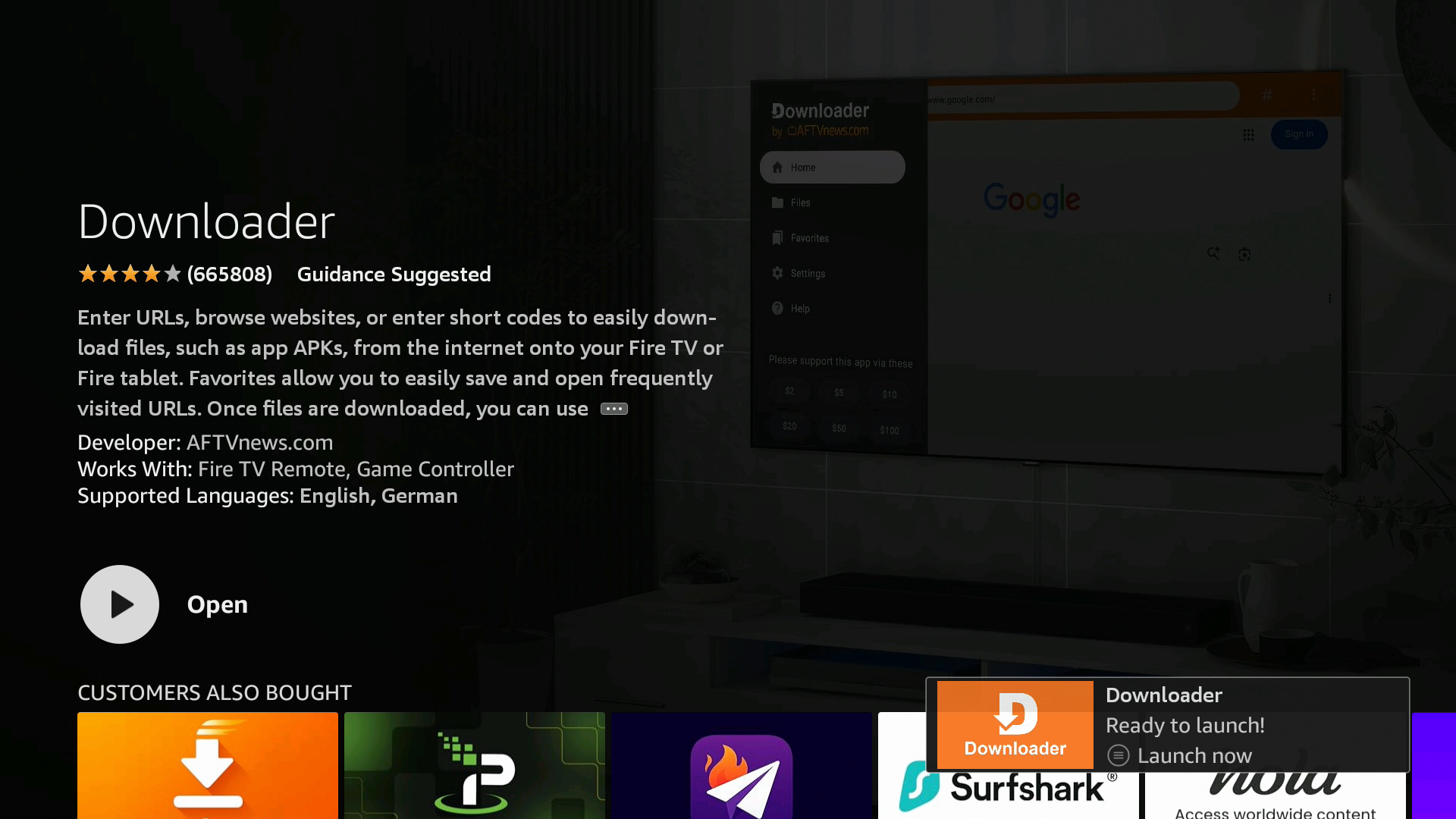
How To Download And Install EasyStreet TV Apps Using Downloader
This guide will walk you through changing the settings on your Amazon Fire TV device to allow for the installation of apps from unknown sources (also known as “jailbreaking”), downloading and installing Downloader, and downloading and installing EasyStreet apps.
Applicable Devices: All Amazon Fire TV Devices (Fire TV Stick, Fire TV, Fire TV Cube and Fire TV Edition Televisions)
ALLOWING THE INSTALLATION OF APPS FROM UNKNOWN SOURCES (“JAILBREAKING”)
- From the Amazon home screen open Settings from the top menu bar
- Select My Fire TV
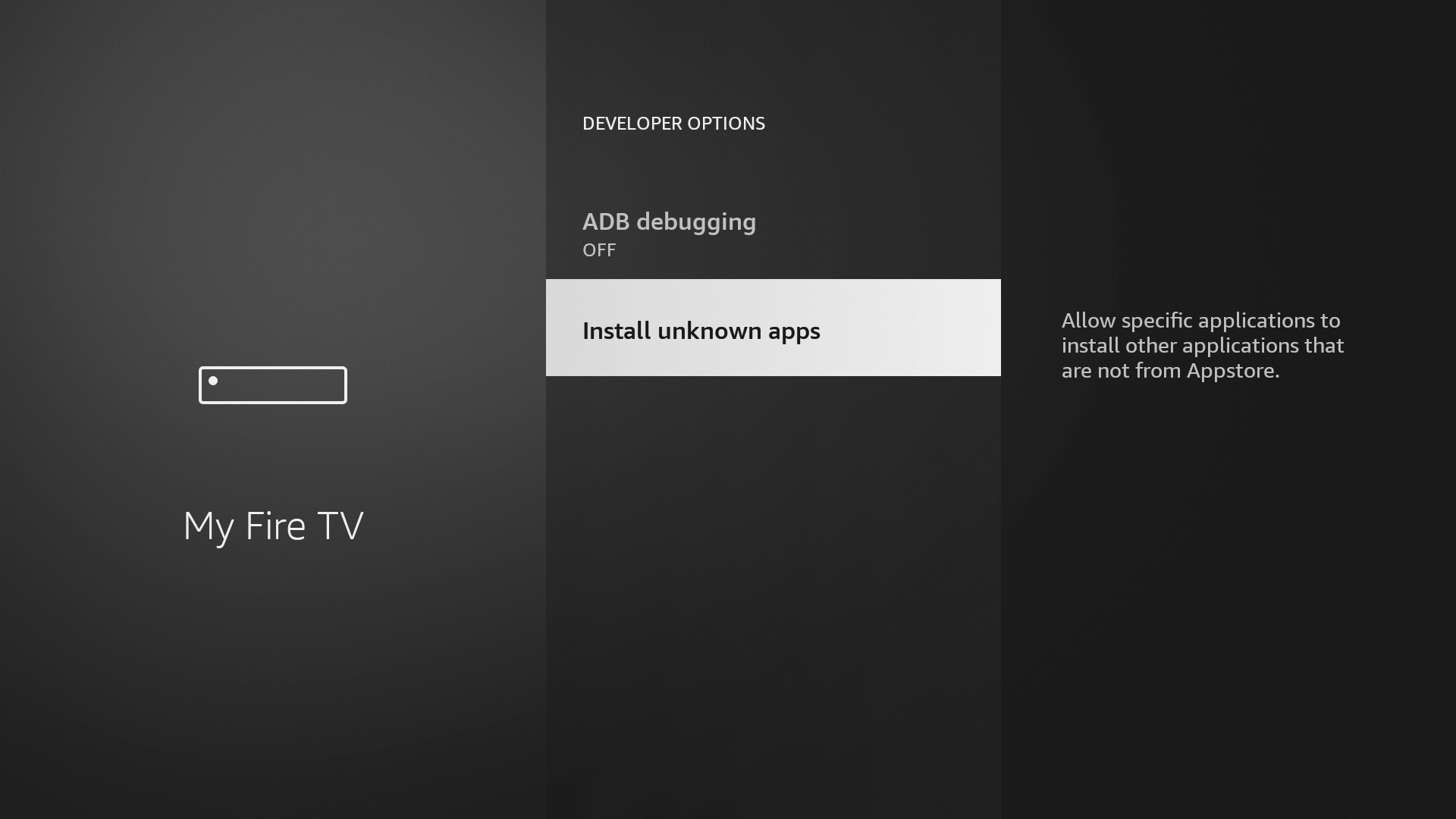
- Select Developer Options
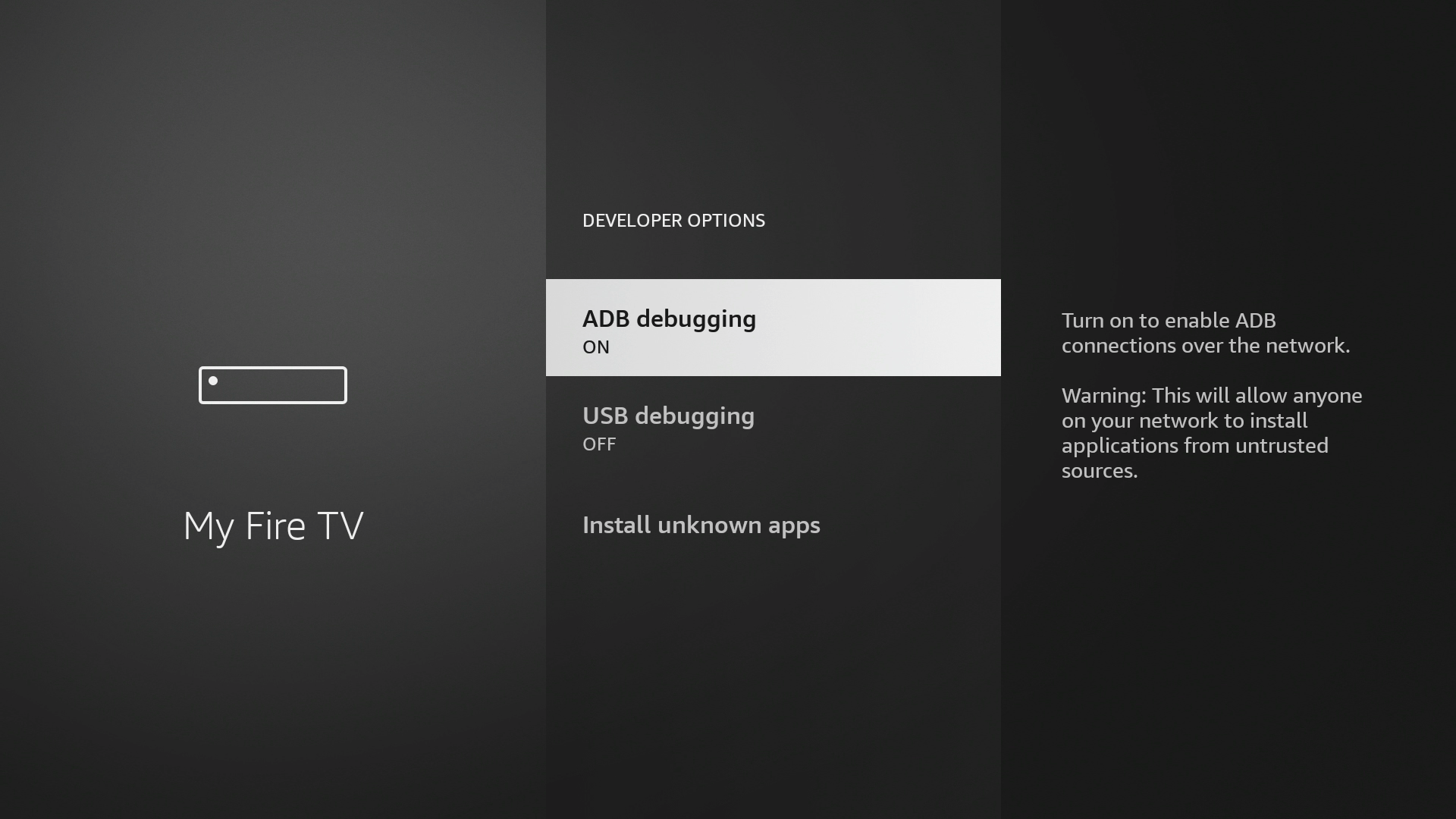
- Select ADB Debugging and make sure it is set to On
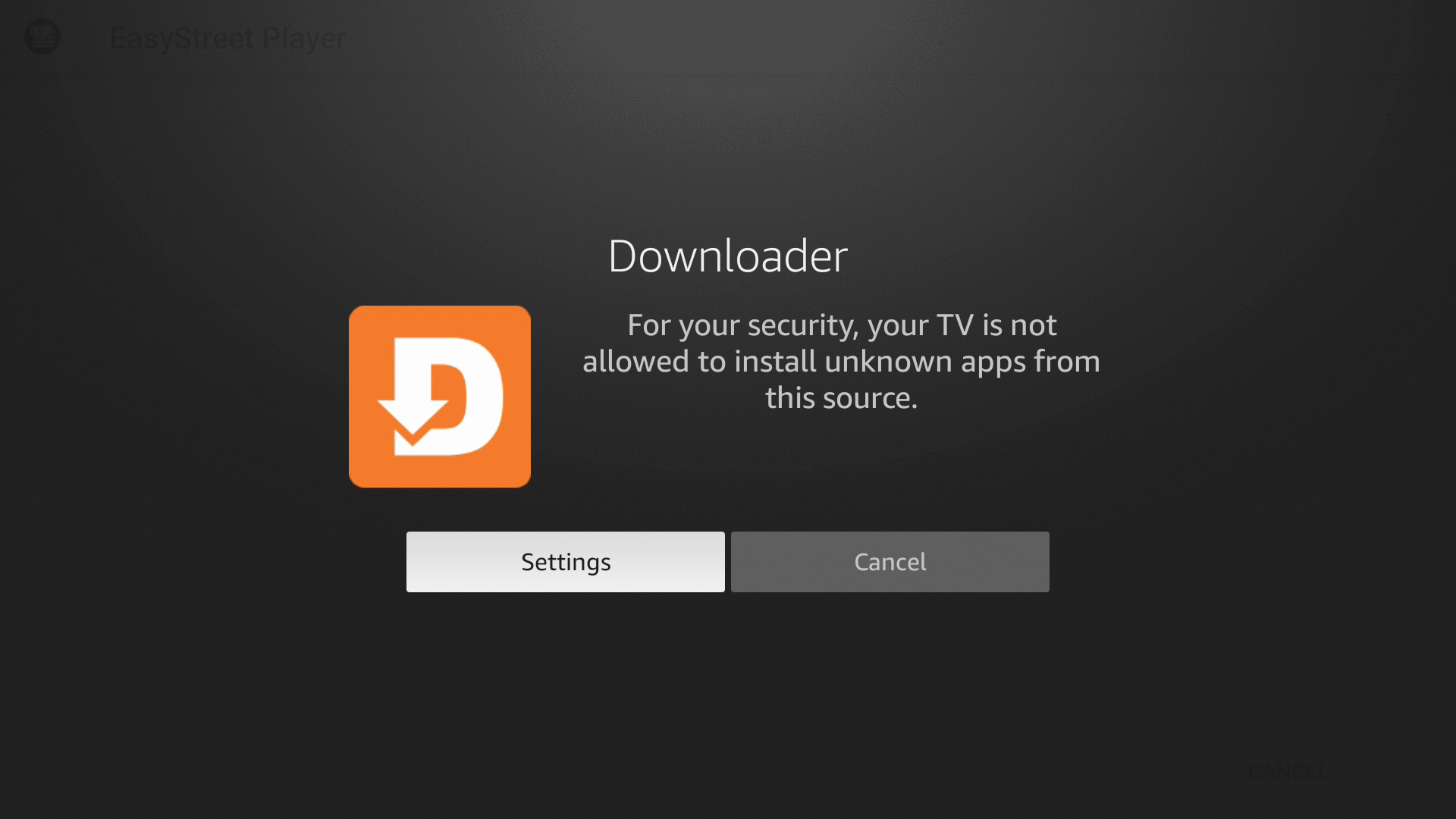
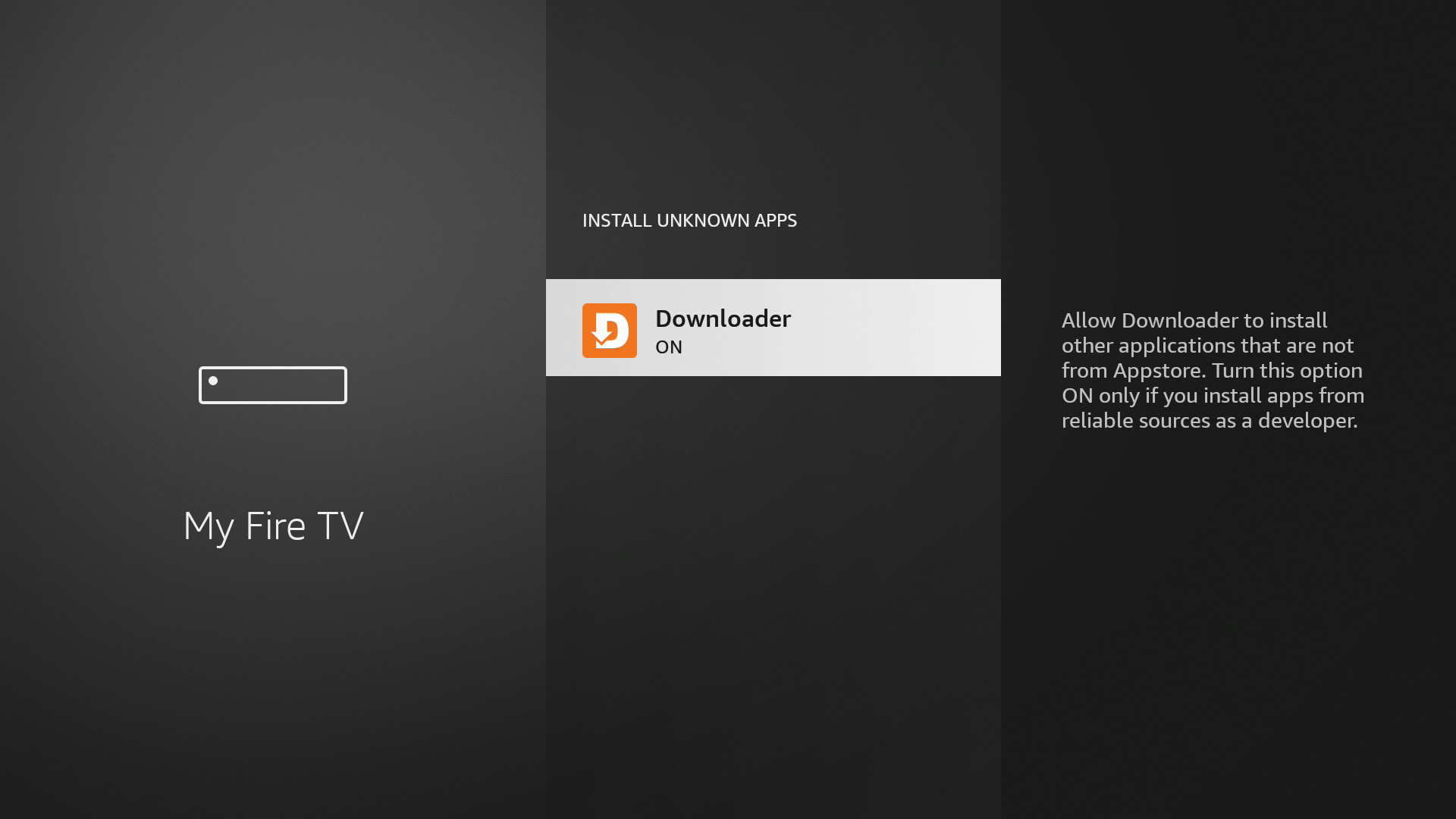
- Select Apps from Unknown Sources
- Select Turn On
DOWNLOADING AND INSTALLING DOWNLOADER
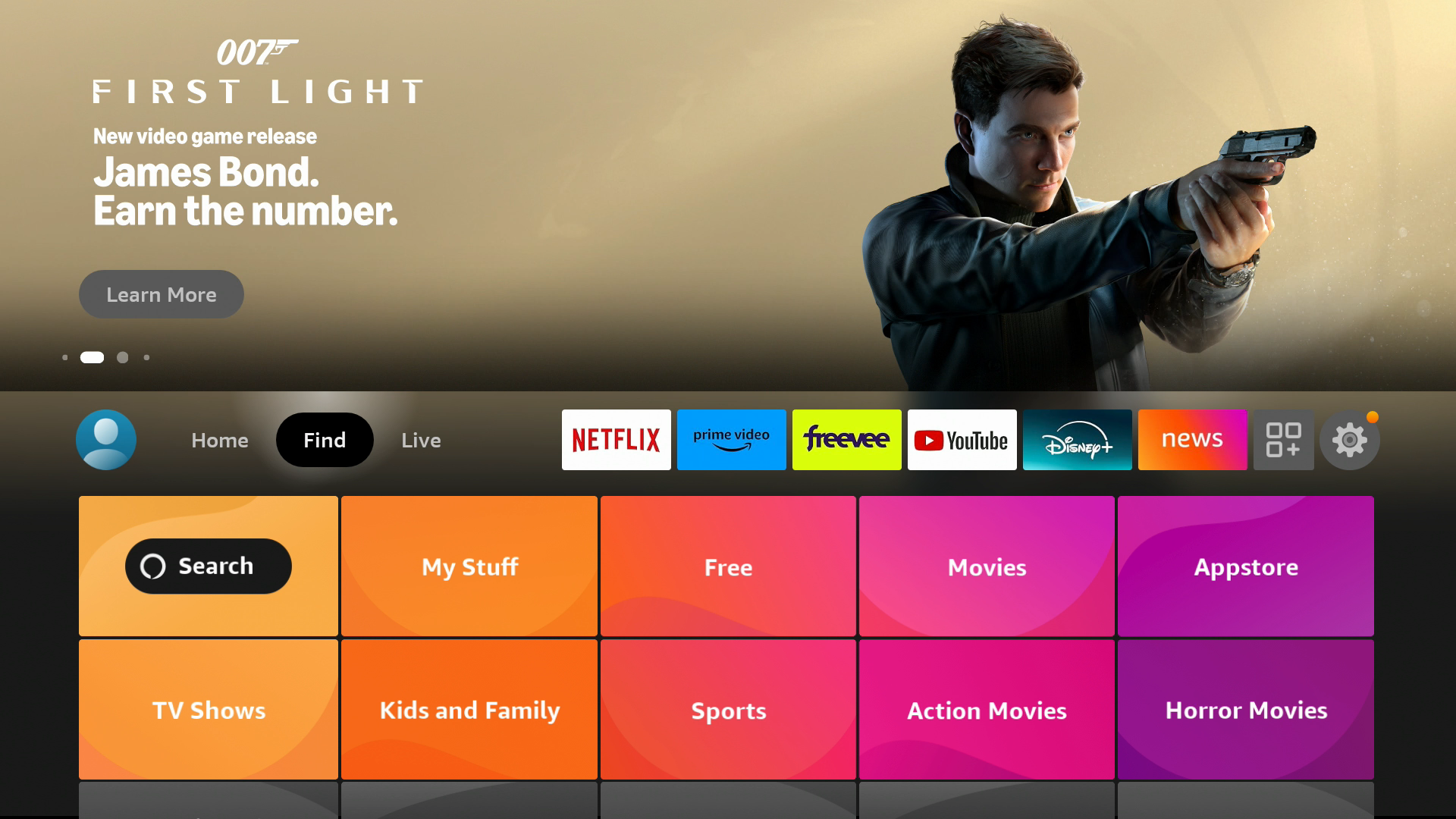
- From the Amazon home screen select the magnifying glass icon
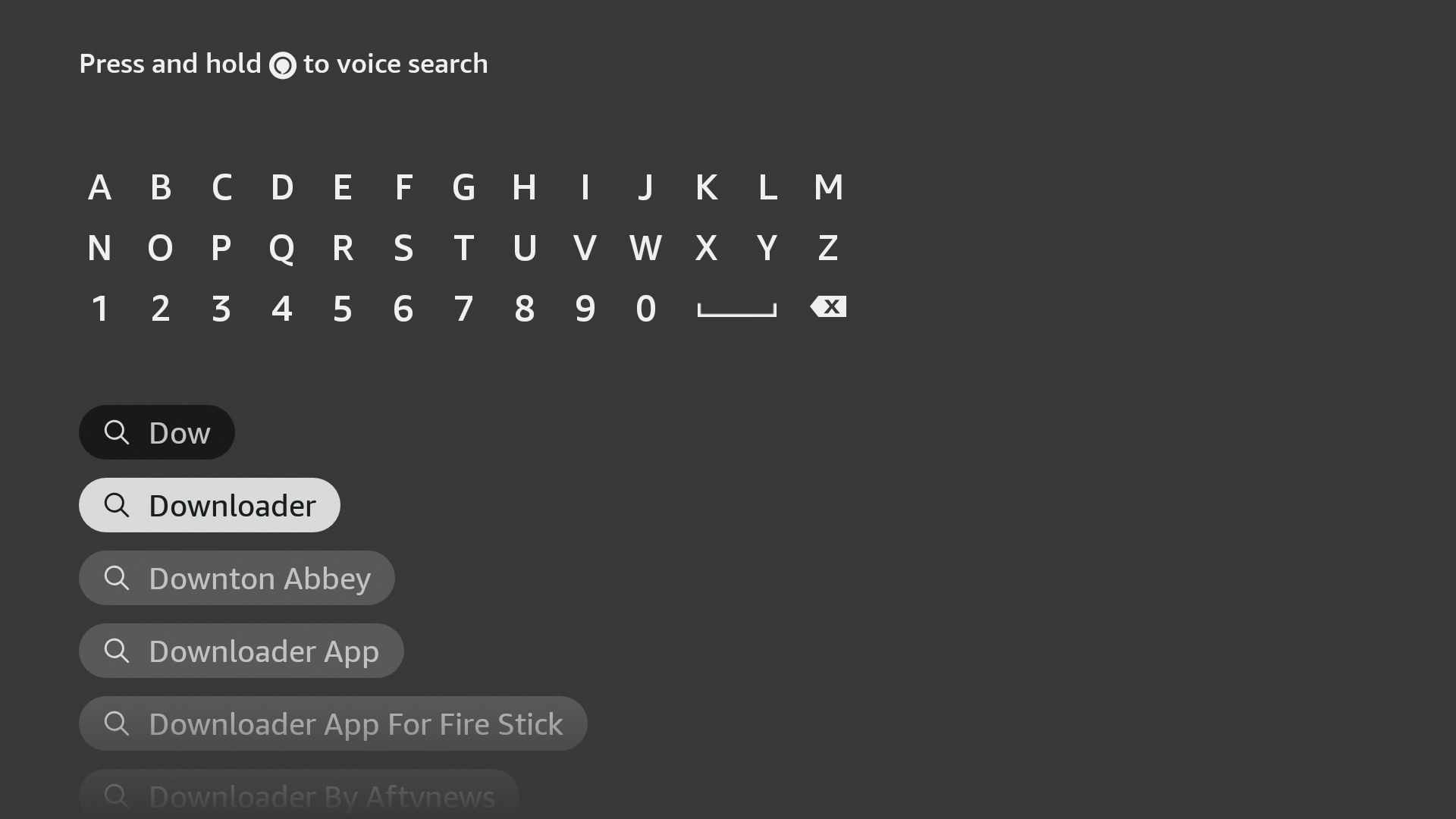
- Use the on-screen keyboard to search for “Downloader” and select it from the search results below
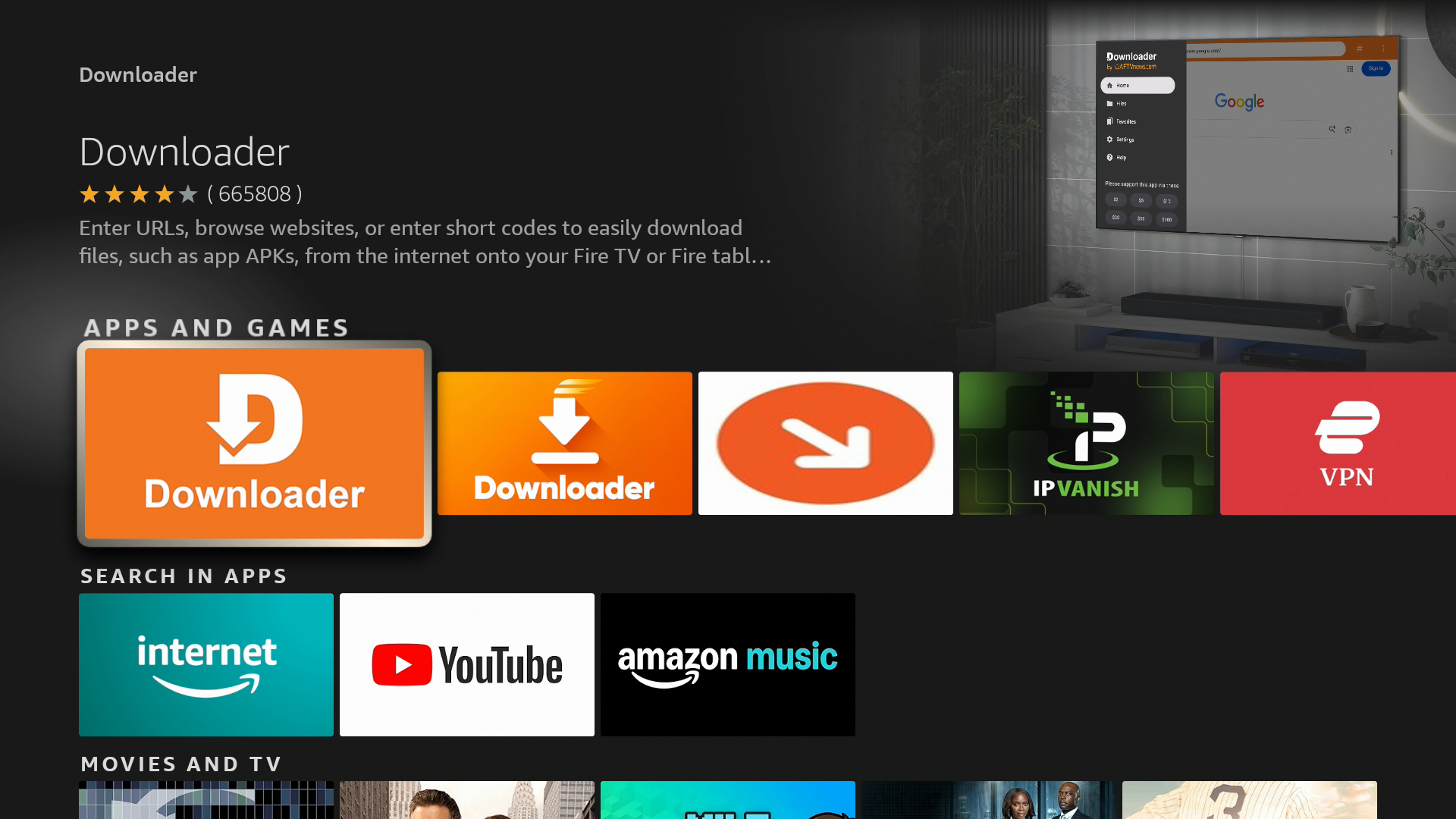
- Select the Downloader icon
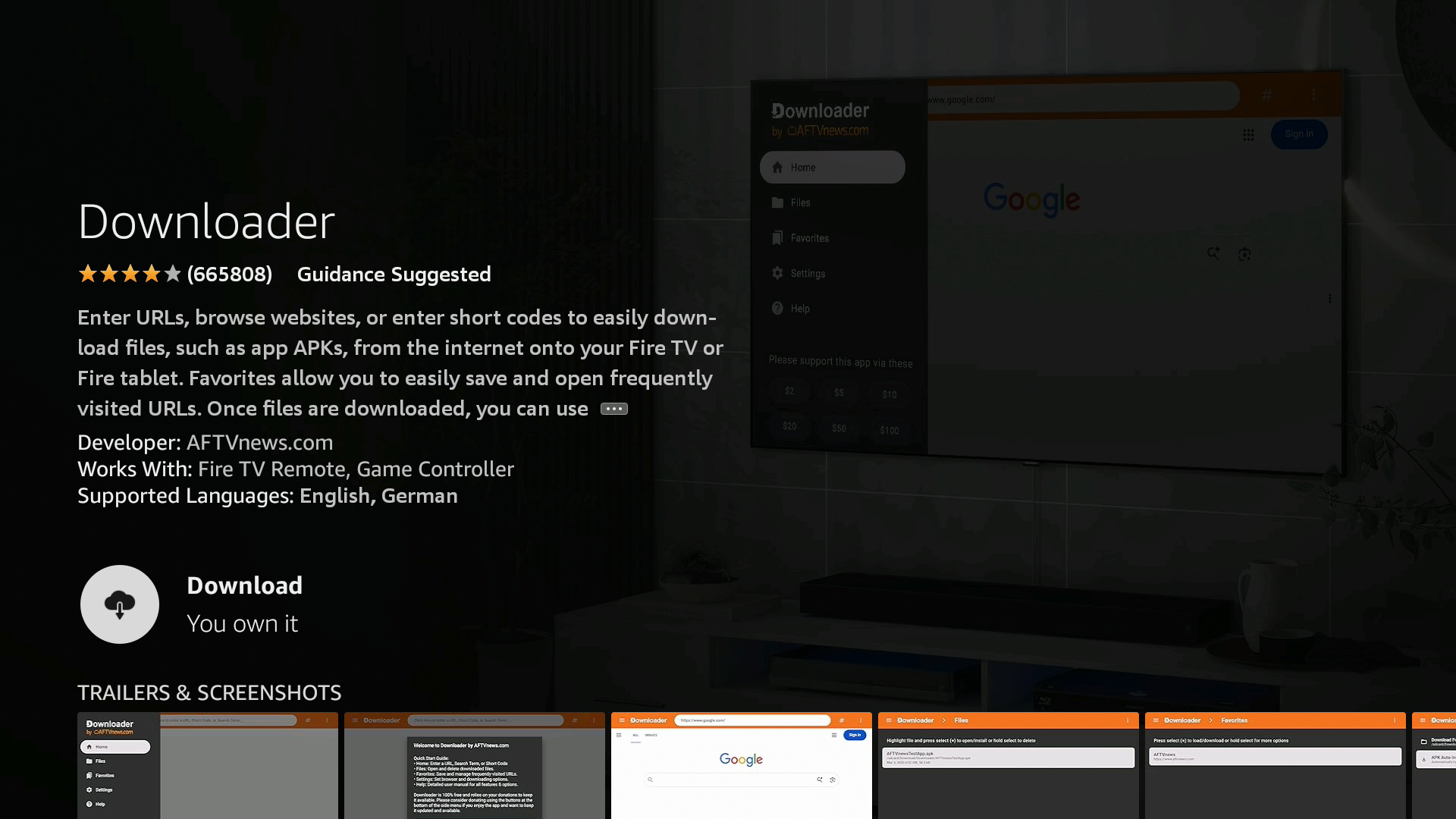
- Select Download You own it
- Wait for Downloader to finish installing and select Open
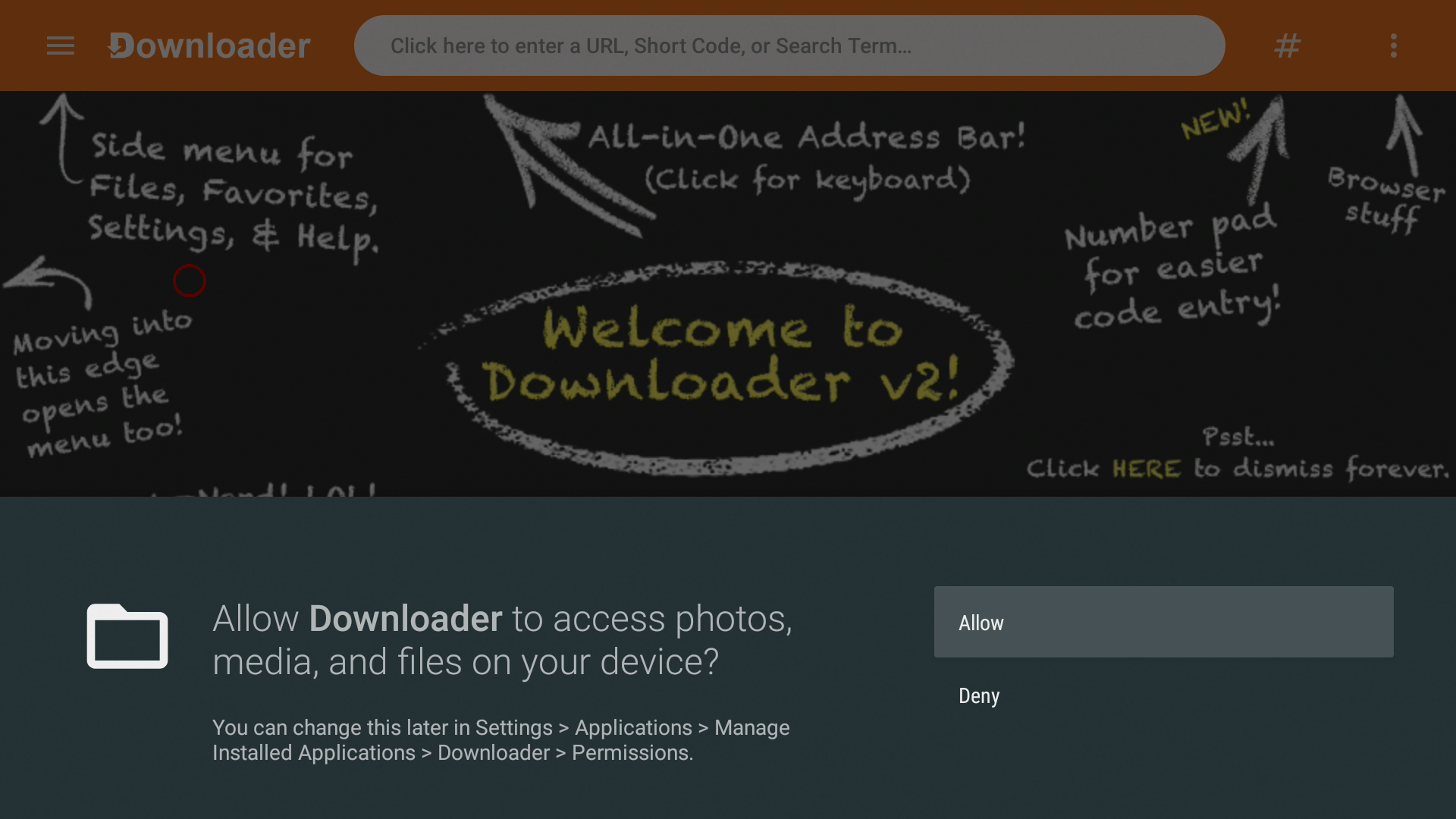
- Select Allow on any permissions messages that may be displayed
DOWNLOADING AND INSTALLING EASYSTREET APPS
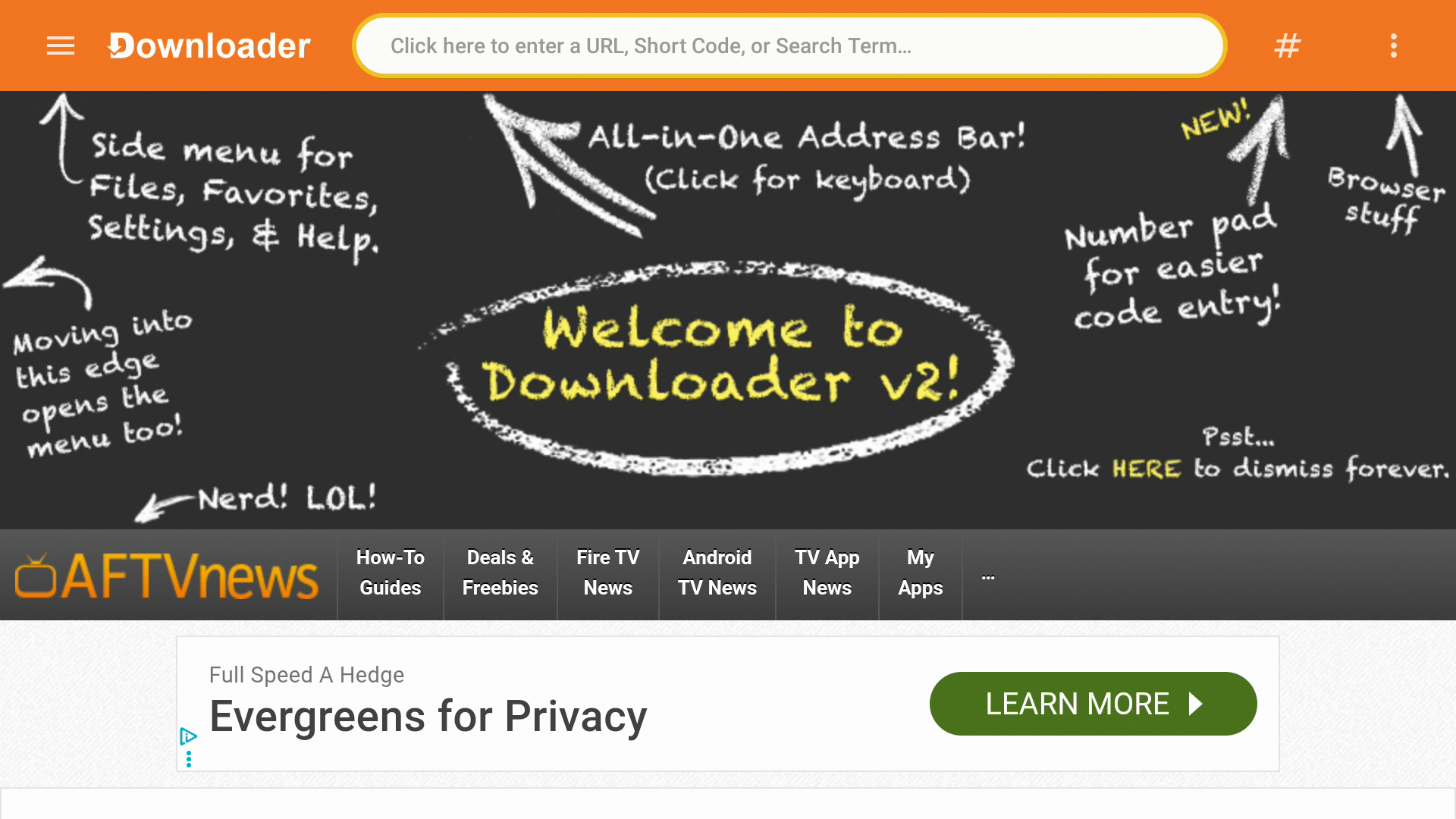
- From the Downloader home screen select the text box under Enter a URL or Search Term:
- Use the on-screen keyboard to enter easystreetapps.com and press Go
- Use the directional buttons on your remote control to move the cursor to the EasyStreet TV app you want to install
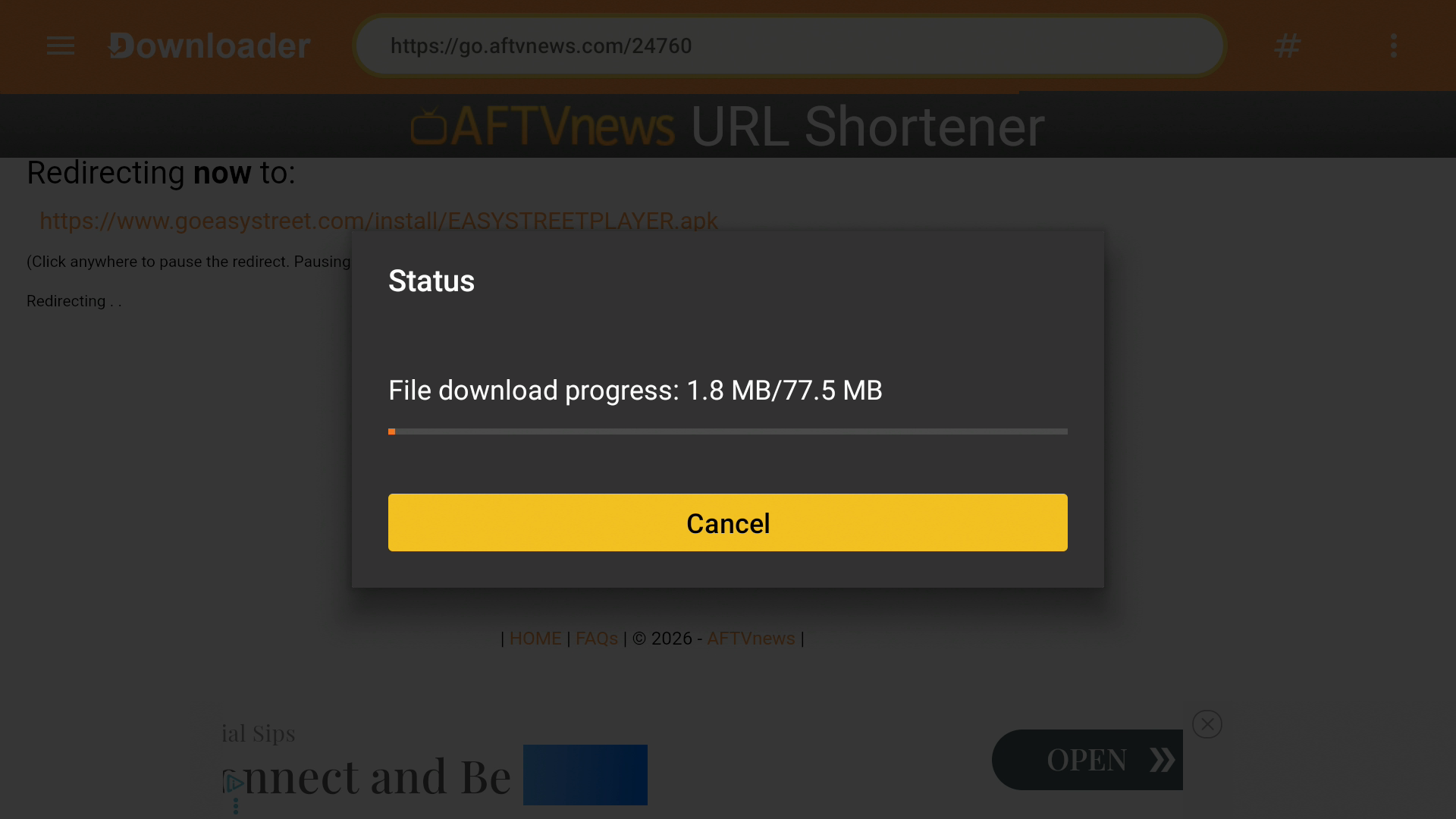
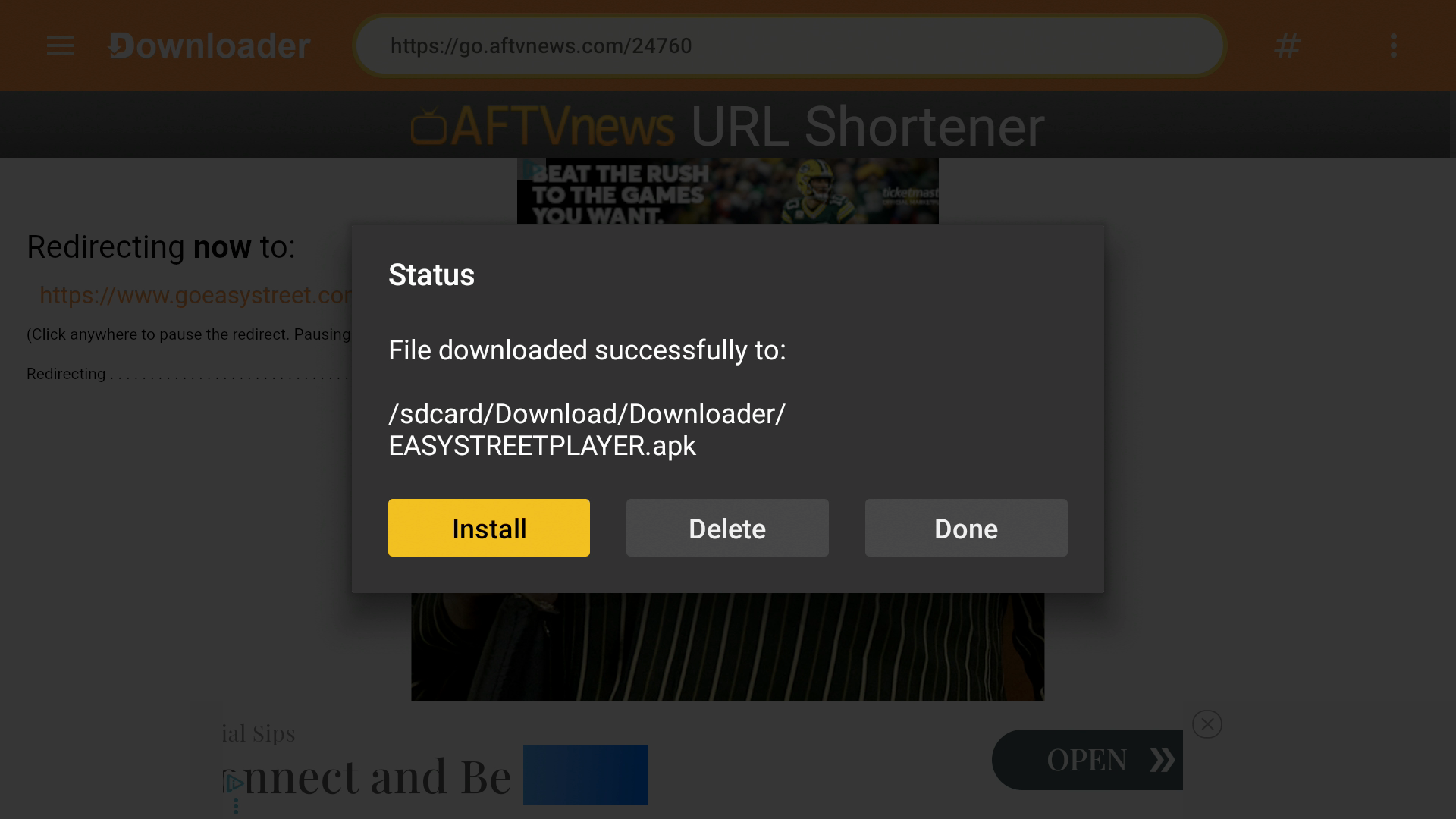
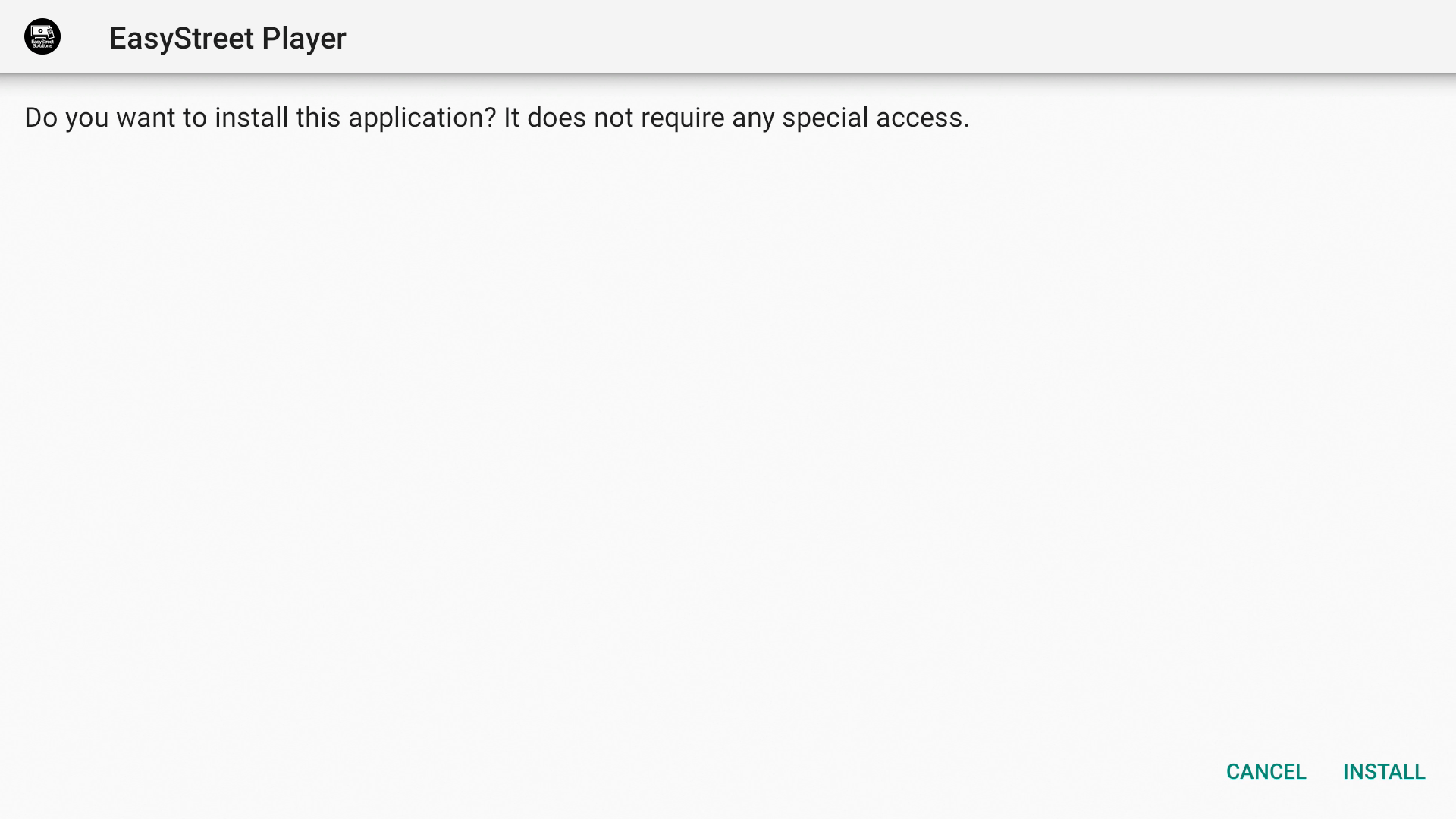
- Wait for the app to download and select INSTALL on the second window
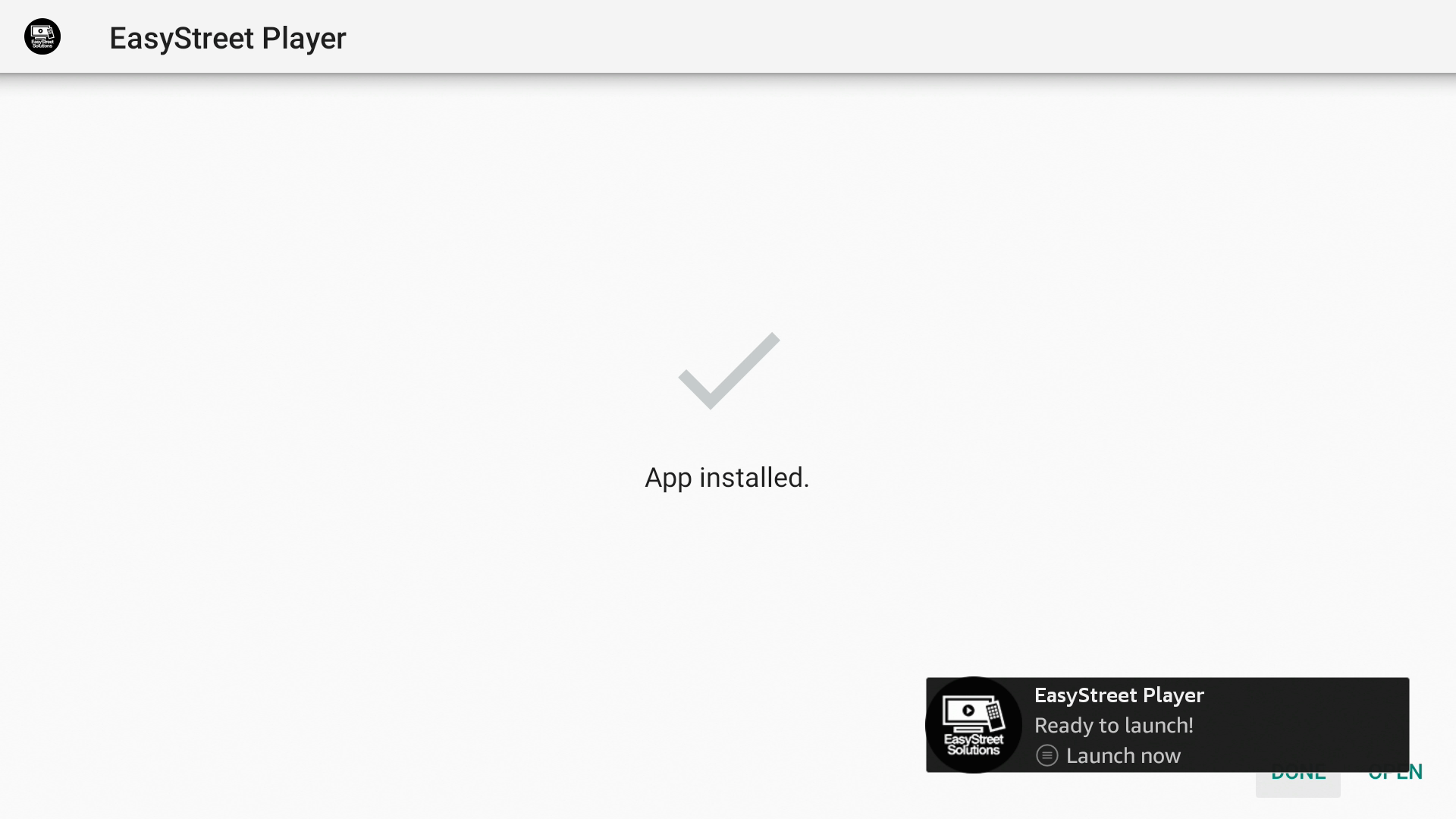
- Select DONE
- Select Delete to remove the installation file since you no longer need it
- Select Delete to confirm
- Repeat steps 3 through 7 to install any additional EasyStreet apps
Note – To close Downloader use the directional buttons on your remote control to move the cursor to the left side of the browser window and select Home from the menu on the left. Once on the Home screen press the back button on your remote control to close Downloader.
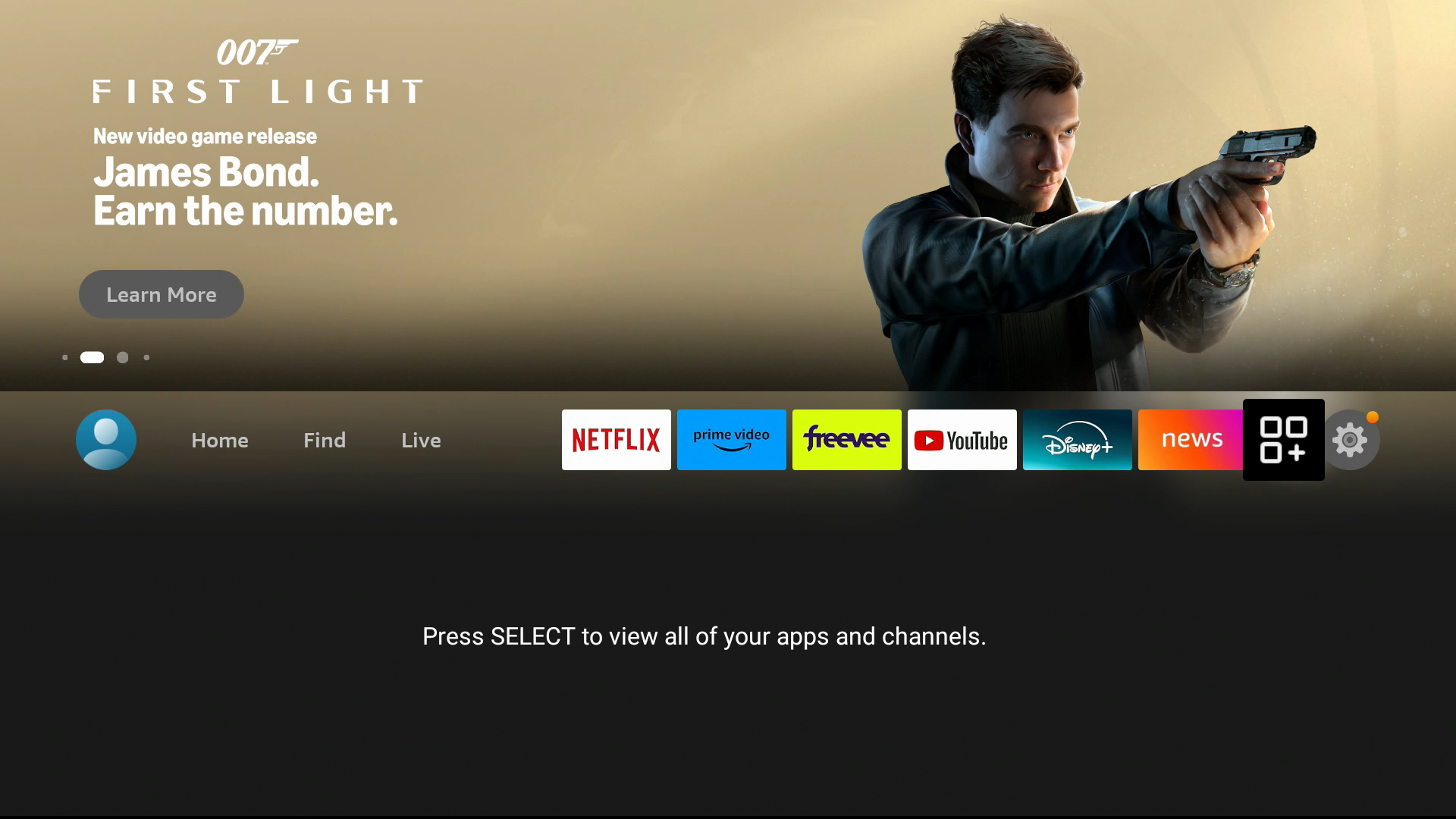
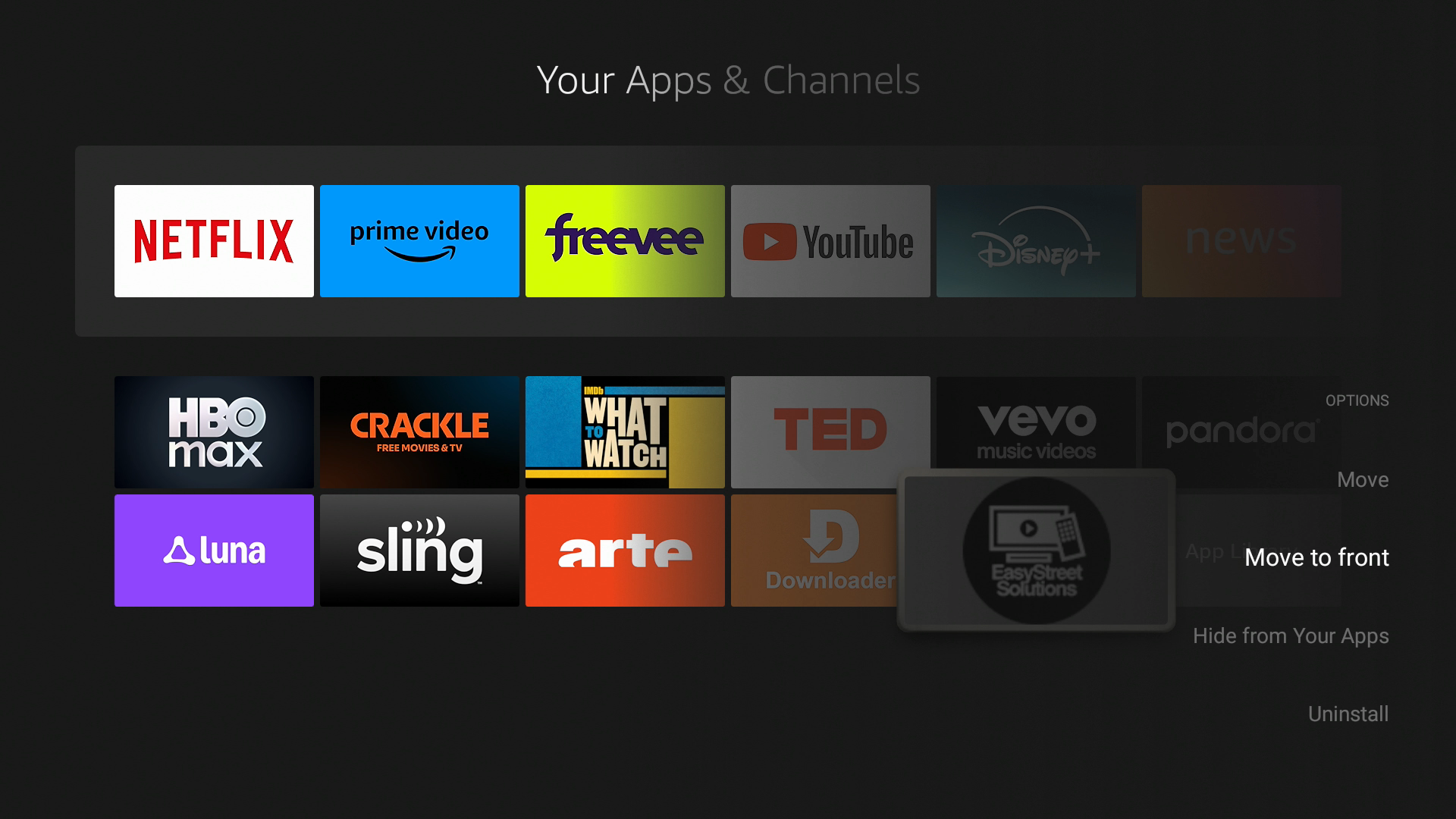
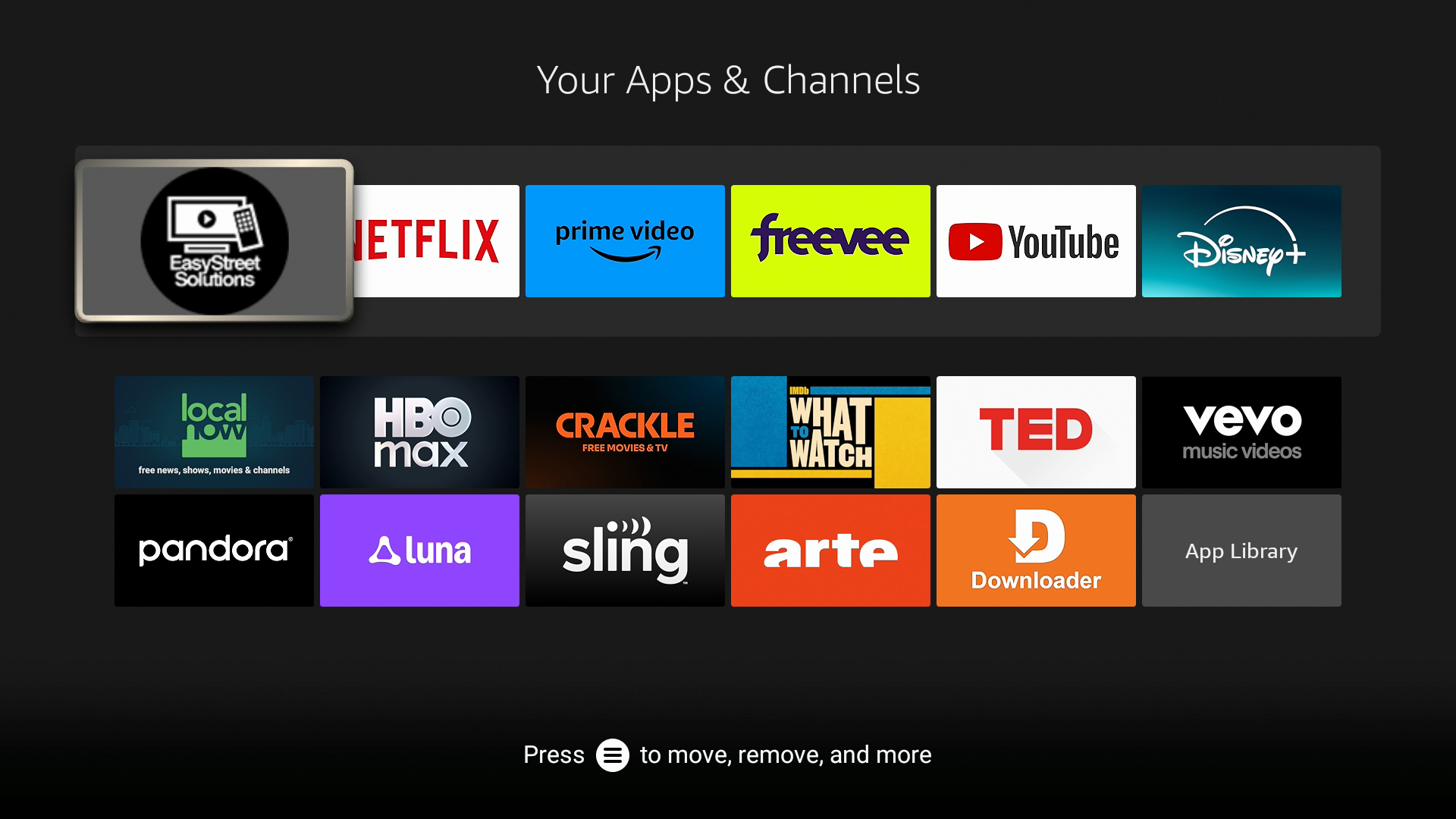
When you are done installing all of the desired apps press the home button on your remote control to return to the Amazon home screen. To launch your newly installed app go to the Your Apps & Channels row and locate it at the end of the row or select See All. New apps are at the bottom of the list. Be sure to leave the Downloader app installed so you can easily install future apps or updates.
How To Download, Install And Configure GSE Smart IPTV
This guide will walk you through changing the settings on your Amazon Fire TV device to allow for the installation of apps from unknown sources (also known as “jailbreaking”), downloading and installing Downloader, downloading, installing and configuring GSE Smart IPTV.
Applicable Devices: All Amazon Fire TV Devices (Fire TV Stick, Fire TV, Fire TV Cube and Fire TV Edition Televisions)
Note – The password for your TV account is a generated password that was emailed to you when you signed up. You can also find your TV account username and password by logging into your billing account, viewing your EasyStreet TV account and selecting IPTV Service Details.
ALLOWING THE INSTALLATION OF APPS FROM UNKNOWN SOURCES (“JAILBREAKING”)
- From the Amazon home screen open Settings from the top menu bar
- Select My Fire TV
- Select Developer Options
- Select ADB Debugging and make sure it is set to On
- Select Apps from Unknown Sources
- Select Turn On
DOWNLOADING AND INSTALLING DOWNLOADER
- From the Amazon home screen select the magnifying glass icon
- Use the on-screen keyboard to search for “Downloader” and select it from the search results below
- Select the Downloader icon
- Select Download You own it
- Wait for Downloader to finish installing and select Open
- Select Allow on any permissions messages that may be displayed
DOWNLOADING AND INSTALLING GSE SMART IPTV
- From the Downloader home screen select the text box under Enter a URL or Search Term:
- Use the on-screen keyboard to enter goeasystreet.com/gseaftv and press Go
- Wait for the app to download and select INSTALL on the second window
- Select DONE
- Select Delete to remove the installation file since you no longer need it
- Select Delete to confirm
- From the Downloader home screen press the back button on your remote control to close Downloader
CONFIGURING GSE SMART IPTV TO WATCH EASYSTREET TV
- To launch GSE SMART IPTV go to the Your Apps & Channels row or select See All and locate it at the end of the list
- Select Ok on the Permission required screen
- Select Allow
- Select Agree
- Select Xtream-Codes API
- Select the plus sign on top
- Select Any name
- Use the on-screen keyboard to enter a profile name (example: ESTV) and select Next
- Use the on-screen keyboard to enter http://easystreetdns.com:8080 and select Next
- Use the on-screen keyboard to enter your TV account username and select Next
- Use the on-screen keyboard to enter your TV account password and select Next
- Select Auto Update
- Select Add
- Select the profile name you entered at step 8
- Select INSTALL EPG DATA to download the TV guide information
- Select LIVE to view the channel list
Note – Be sure to leave the Downloader app installed so you can easily install future apps or updates.
How To Download, Install And Configure Kodi
This guide will walk you through generating your M3U URLs, changing the settings on your Amazon Fire TV device to allow for the installation of apps from unknown sources (also known as “jailbreaking”), downloading and installing Downloader, downloading, installing and configuring Kodi.
Kodi is a very versatile program that allows for a lot of customization. In many cases some of these customizations include moving and renaming some menu items. This guide is based on a clean installation of Kodi. If you are using a customized version of Kodi you may find some of these steps to be slightly different.
Applicable Devices: All Amazon Fire TV Devices (Fire TV Stick, Fire TV, Fire TV Cube and Fire TV Edition Televisions)
GENERATING YOUR M3U URLS
The PVR Simple IPTV Client add-on for Kodi uses 2 very long URLs that have to be entered perfectly and it is very easy to make mistakes when entering this information. To make things easier we offer a M3U URL Generator on our website. Take a moment now to visit our website and generate your shortened (much easier) URLs that you will need to complete the configuration steps below. You may need to use a computer or phone to visit the website since the Amazon Fire TV devices do not include a web browser.
- Visit http://www.GoEasyStreet.com
- Select Support Center from the menu on top
- Select M3U URL Generator
- Enter your username for your TV account in the box below Your Username
- Enter your password for your TV account in the box below Your Password
- Select the option for Playlist URL and EPG URL
- Select Generate
- Store the 2 URLs from the Your URLS area somewhere safe because you will need to enter this information when configuring Kodi
Note – The password for your TV account is a generated password that was emailed to you when you signed up. You can also find your TV account username and password by logging into your billing account, viewing your EasyStreet TV account and selecting IPTV Service Details.
ALLOWING THE INSTALLATION OF APPS FROM UNKNOWN SOURCES (“JAILBREAKING”)
- From the Amazon home screen open Settings from the top menu bar
- Select My Fire TV
- Select Developer Options
- Select ADB Debugging and make sure it is set to On
- Select Apps from Unknown Sources
- Select Turn On
DOWNLOADING AND INSTALLING DOWNLOADER
- From the Amazon home screen select the magnifying glass icon
- Use the on-screen keyboard to search for “Downloader” and select it from the search results below
- Select the Downloader icon
- Select Download You own it
- Wait for Downloader to finish installing and select Open
- Select Allow on any permissions messages that may be displayed
DOWNLOADING AND INSTALLING KODI
- From the Downloader home screen select the text box under Enter a URL or Search Term:
- Use the on-screen keyboard to enter goeasystreet.com/kodiaftv and press Go
- Wait for the app to download and select INSTALL on the second window
- Select DONE
- Select Delete to remove the installation file since you no longer need it
- Select Delete to confirm
- From the Downloader home screen press the back button on your remote control to close Downloader
CONFIGURING KODI TO WATCH EASYSTREET TV
- To launch Kodi go to the Your Apps & Channels row or select See All and locate it at the end of the list
- Select continue on the Info message screen
- Select Allow
- Highlight TV from the menu on the left
- Select Enter add-on browser
- Select PVR IPTV Simple Client
- Select Install
- Wait for the add-on to finish downloading and installing and select PVR IPTV Simple Client
- Select Configure
- Select M3U Play List URL
- Use the on-screen keyboard to enter your Playlist M3U URL that you generated using the M3U URL Generator from the EasyStreet website and press OK
- Select EPG Settings from the menu on the left
- Select XMLTV URL
- Use the on-screen keyboard to enter your EPG URL that you generated using the M3U URL Generator from the EasyStreet website and press OK
- Select OK
- Select OK
- Press the back button on your remote control repeatedly until you are at the Kodi home screen
- Select the power icon in the top left corner
- Select Exit to close Kodi
- Select Kodi from the Recent row or Your Apps & Channels row or select See All and locate it at the end of the list
Note – Wait for Kodi to finish loading all of the channels and EPG information (this may take some time depending on your internet connection). Be sure to leave the Downloader app installed so you can easily install future apps or updates.
Android Devices
How To Download And Install EasyStreet TV Apps Using Downloader
This guide will walk you through changing the settings on your Android TV device to allow for the installation of apps from unknown sources (also known as “jailbreaking”), downloading and installing Downloader, downloading and installing EasyStreet apps.
The Android operating system is available on many devices and it would be impossible to write instructions for all of the smartphones, tablets and Android TV boxes. This guide is written based on Android TV 9 using a TiVo 4K Stream. Your menus and options may be different and you may need to do a little digging around to find the appropriate selection in some cases. Keep in mind that this guide is based on a version of Android specifically designed for use with a television. In some cases some users may be using Android TV boxes that are not running Android TV but typically an altered version of Android for use with smartphones or tablets. These devices are not officially supported for use with some of these applications and users may have varying experiences especially on lower end Android TV boxes. Downloader only works on Android TV devices.
Applicable Devices: All official Android TV devices
Note – The password for your TV account is a generated password that was emailed to you when you signed up. You can also find your TV account username and password by logging into your billing account, viewing your EasyStreet TV account and selecting IPTV Service Details.
DOWNLOADING AND INSTALLING DOWNLOADER
- From the Android home screen locate the Google Play Store. The icon is typically a multi-colored triangle on its side. You may need to look in the all apps area to find it and it may be listed as Get more apps on some devices.
- Locate the search feature (this may be shown as a magnifying glass icon or search bar typically located near the top of the screen) and use the on-screen keyboard to search for “Downloader” and select it from the search results.
- Select the Install button and wait for Downloader to finish downloading and installing.
- Select Open to launch Downloader
Note – If you cannot find Downloader in the Google Play Store it may be because you are using an unsupported device. Downloader only works for official Android TV devices. For unsupported devices please see the instructions for How To Download And Install EasyStreet TV Apps Using The Web Browser.
DOWNLOADING AND INSTALLING EASYSTREET APPS
- From the Downloader home screen select the text box under Enter a URL or Search Term:
- Use the on-screen keyboard to enter easystreetapps.com and press Go
- Use the directional buttons on your remote control to move the cursor to the EasyStreet TV app you want to install
- Wait for the app to download and select INSTALL on the second window
- Select DONE
- Select Delete to remove the installation file since you no longer need it
- Select Delete to confirm
- Repeat steps 3 through 7 to install any additional EasyStreet apps
Note – To close Downloader use the directional buttons on your remote control to move the cursor to the left side of the browser window and select Home from the menu on the left. Once on the Home screen press the back button on your remote control to close Downloader.
Locate the app you installed in the all apps area or by locating the icon on your home screen. Be sure to leave the Downloader app installed so you can easily install future apps or updates.
How To Download And Install EasyStreet TV Apps Using The Web Browser
This guide will walk you through downloading and installing EasyStreet apps through the mobile web browser.
The Android operating system is available on many devices and it would be impossible to write instructions for all of the smartphones, tablets and Android TV boxes. Your menus and options may be different and you may need to do a little digging around to find the appropriate selection in some cases. This guide is written using the Google Chrome mobile web browser and your steps may be slightly different.
Applicable Devices: All Android smartphone and tablets
Note – The password for your TV account is a generated password that was emailed to you when you signed up. You can also find your TV account username and password by logging into your billing account, viewing your EasyStreet TV account and selecting IPTV Service Details.
- Open Google Chrome (or other mobile web browser)
- Use the on-screen keyboard to enter easystreetapps.com in the address bar and load the website
- Tap on the EasyStreet TV app you want to install (your web browser should automatically download the installation file and prompt you to open the file)
- Tap Open and choose to open the file with the package installer
- Tap Install
- Select DONE
- Repeat steps 3 through 6 to install any additional EasyStreet apps
If you are not prompted to install or open the file you may need to go into your apps area and look for an app that will allow access to the files on the device. This may simply say Files, Downloads or something similar. Locate the installation file (most likely in Downloads) and click on it and choose to open it with the package installer if prompted and follow the prompts to install the app.
How To Watch EasyStreet TV Using The Web Player
This guide will walk you through how to watch EasyStreet TV using the web player on our dedicated website on an Android smartphone or tablet. These instructions should work with other Android television devices if they have a web browser installed.
Note – The password for your TV account is a generated password that was emailed to you when you signed up. You can also find your TV account username and password by logging into your billing account, viewing your EasyStreet TV account and selecting IPTV Service Details. Due to the small screen sizes it may be tough to use the web player with some smartphones.
Applicable Devices: All Android smartphones and tablets and other Android television devices if they have a web browser installed.
- Open a modern web browser (Google Chrome, Mozilla Firefox etc.)
- Use the on-screen keyboard to enter www.easystreettv.com into the address bar and press enter or the right facing arrow button on your keyboard
- Use the on-screen keyboard to enter your TV account username in the Username box
- Use the on-screen keyboard to enter your TV account password in the Password box
- Tap on LOGIN
Note – Bookmark EasyStreetTV.com for easy access to our web player in the future. Our web player includes several buttons that do not function that are included for possible future development. We do not offer any content in the Movies, TV Series, Radio or Catch Up areas at this time.
How To Download, Install And Configure IPTV Smarters Pro
This guide will walk you through downloading, installing and configuring IPTV Smarters Pro to watch EasyStreet TV.
The Android operating system is available on many devices and it would be impossible to write instructions for all of the smartphones, tablets and Android TV boxes. This guide is written based on Android TV 9 using a TiVo 4K Stream. Your menus and options may be different and you may need to do a little digging around to find the appropriate selection in some cases. Keep in mind that this guide is based on a version of Android specifically designed for use with a television. In some cases some users may be using Android TV boxes that are not running Android TV but typically an altered version of Android for use with smartphones or tablets. These devices are not officially supported for use with some of these applications and users may have varying experiences especially on lower end Android TV boxes.
Applicable Devices: All official Android TV devices and most smartphones, tablets and unofficial Android TV boxes
Note – The password for your TV account is a generated password that was emailed to you when you signed up. You can also find your TV account username and password by logging into your billing account, viewing your EasyStreet TV account and selecting IPTV Service Details.
DOWNLOADING AND INSTALLING IPTV SMARTERS PRO
- From the Android home screen locate the Google Play Store. The icon is typically a multi-colored triangle on its side. You may need to look in the all apps area to find it and it may be listed as Get more apps on some devices.
- Locate the search feature (this may be shown as a magnifying glass icon or search bar typically located near the top of the screen) and use the on-screen keyboard to search for “IPTV Smarters Pro” and select it from the search results.
- Select the Install button and wait for IPTV Smarters Pro to finish downloading and installing.
- Select Open to launch IPTV Smarters Pro
CONFIGURING IPTV SMARTERS PRO TO WATCH EASYSTREET TV
- Scroll to the bottom and select Accept on Terms of Use screen
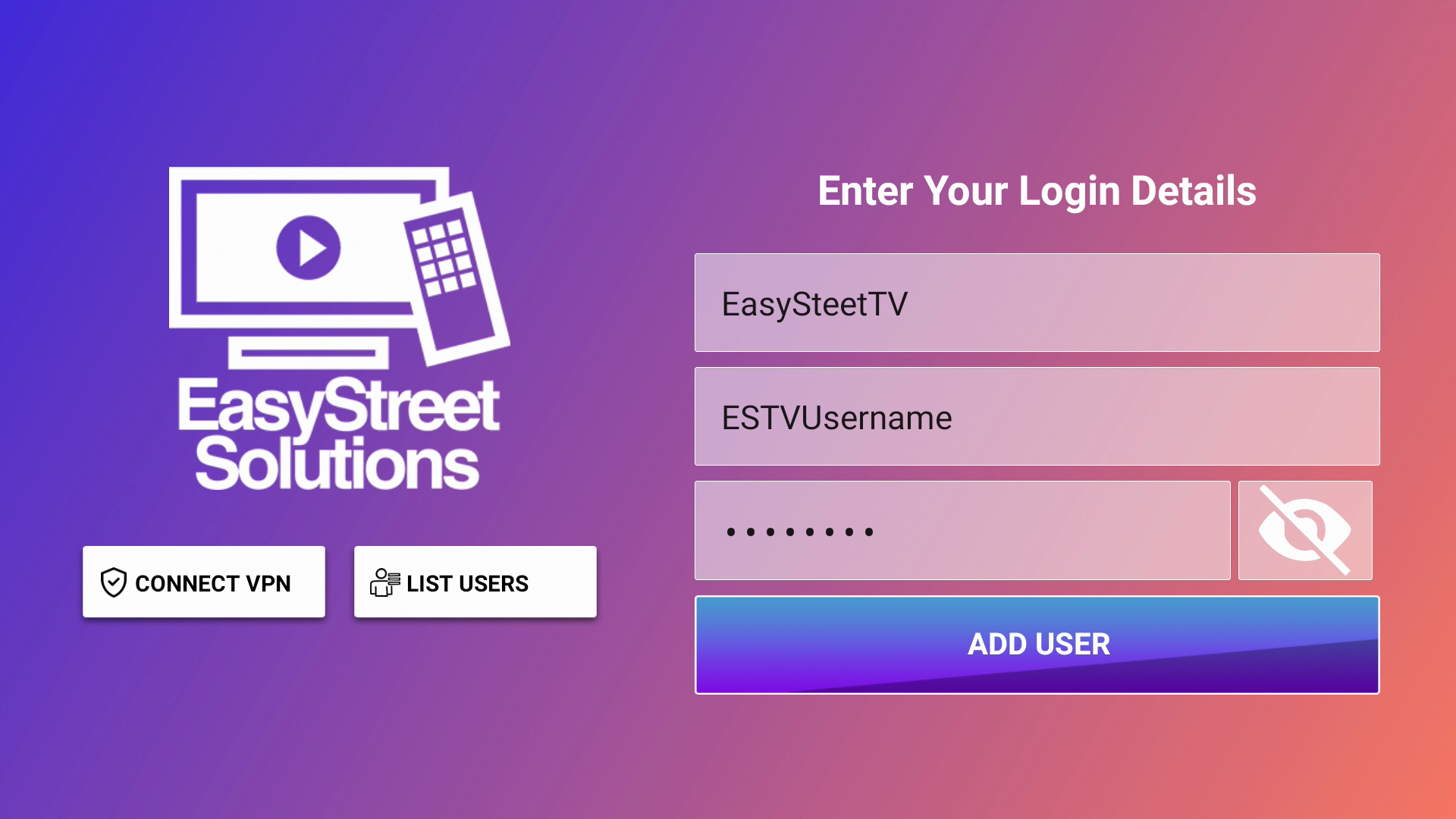
- Select Login with Xtream Codes API
- Use the on-screen keyboard to enter a profile name (example: ESTV)
- Use the on-screen keyboard to enter your TV account username in the Username box
- Use the on-screen keyboard to enter your TV account password in the Password box
- Use the on-screen keyboard to enter http://easystreetdns.com:8080 in the URL box
- Select ADD USER
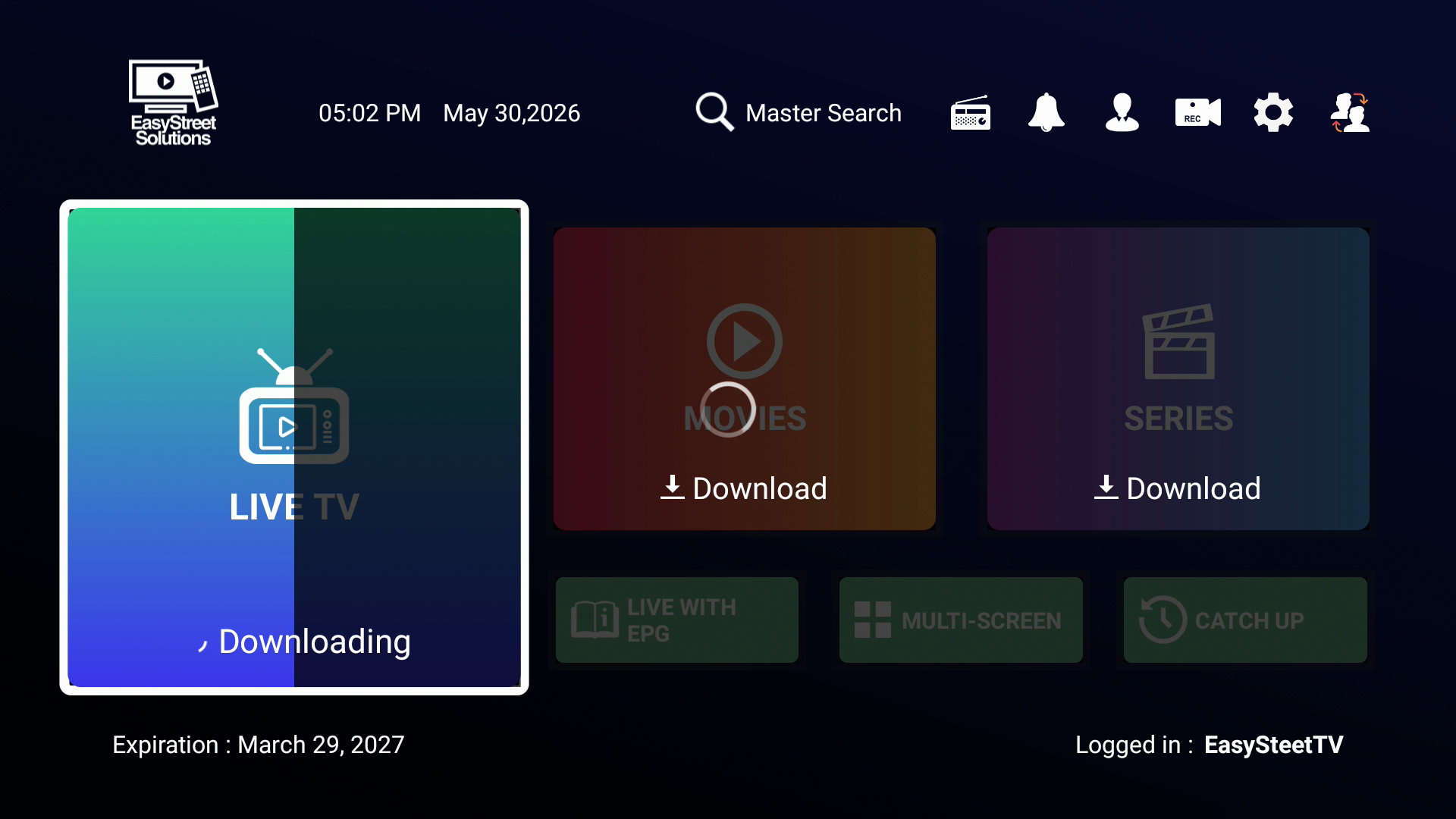
- Select the user profile your created in step 3 to download the channel list and load IPTV Smarters Pro
- Select Install EPG to download the TV guide information
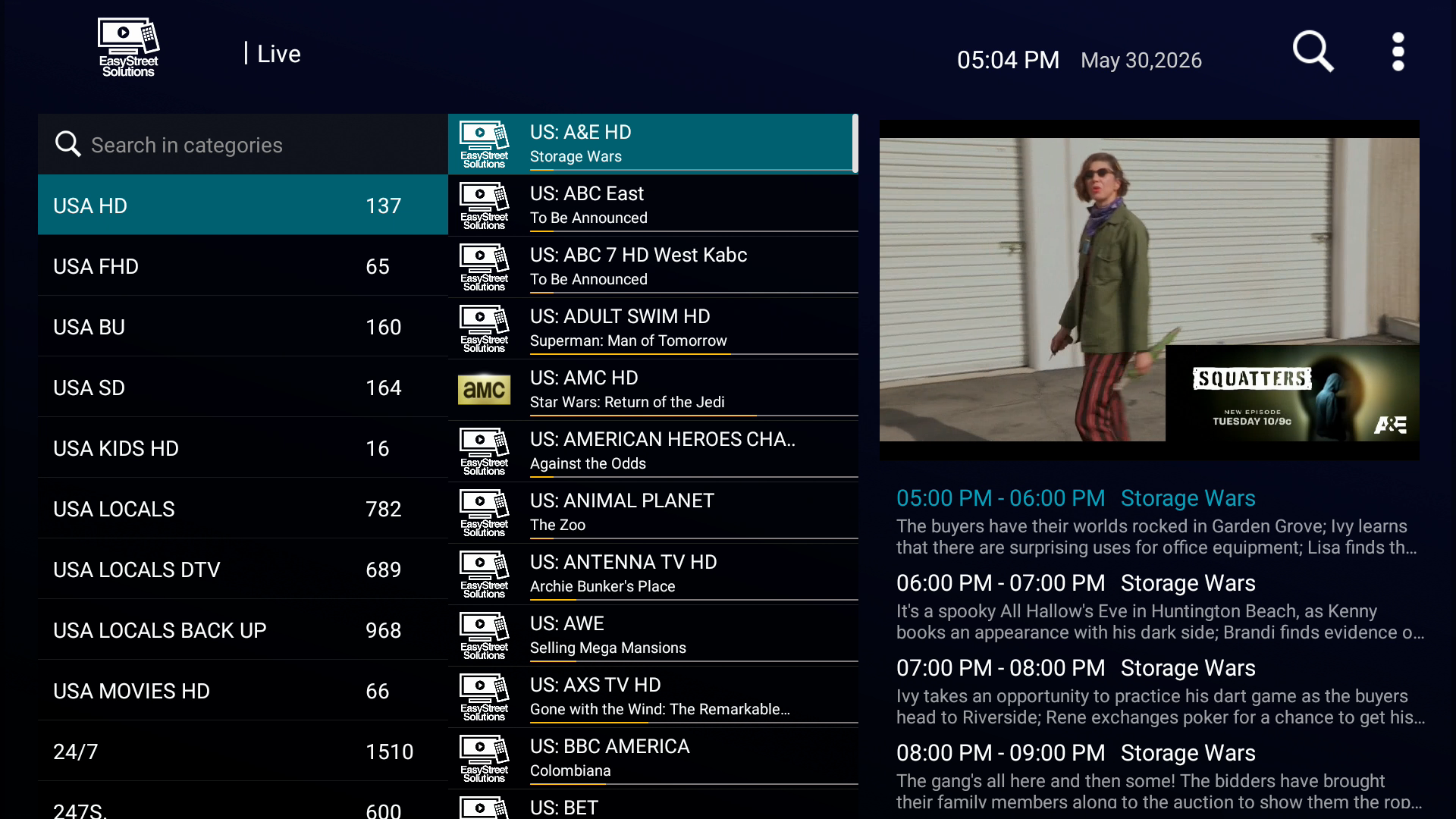
- Select LIVE TV or LIVE WITH EPG to access live TV streams
Note – IPTV Smarters Pro includes several buttons that do not function. We do not offer any content in the Movies, TV Series, Radio or Catch Up areas at this time.
How To Download, Install And Configure GSE Smart IPTV
This guide will walk you through downloading, installing and configuring GSE Smart IPTV to watch EasyStreet TV.
The Android operating system is available on many devices and it would be impossible to write instructions for all of the smartphones, tablets and Android TV boxes. This guide is written based on Android TV 9 using a TiVo 4K Stream. Your menus and options may be different and you may need to do a little digging around to find the appropriate selection in some cases. Keep in mind that this guide is based on a version of Android specifically designed for use with a television. In some cases some users may be using Android TV boxes that are not running Android TV but typically an altered version of Android for use with smartphones or tablets. These devices are not officially supported for use with some of these applications and users may have varying experiences especially on lower end Android TV boxes.
Applicable Devices: All official Android TV devices and most smartphones, tablets and unofficial Android TV boxes
Note – The password for your TV account is a generated password that was emailed to you when you signed up. You can also find your TV account username and password by logging into your billing account, viewing your EasyStreet TV account and selecting IPTV Service Details.
DOWNLOADING AND INSTALLING KODI
- From the Android home screen locate the Google Play Store. The icon is typically a multi-colored triangle on its side. You may need to look in the all apps area to find it and it may be listed as Get more apps on some devices.
- Locate the search feature (this may be shown as a magnifying glass icon or search bar typically located near the top of the screen) and use the on-screen keyboard to search for “GSE Smart IPTV” and select it from the search results.
- Select the Install button and wait for GSE Smart IPTV to finish downloading and installing.
- Select Open to launch GSE Smart IPTV
CONFIGURING GSE SMART IPTV TO WATCH EASYSTREET TV
- Select Ok on the Permission required screen
- Select Allow
- Select Agree
- Select Xtream-Codes API
- Select the plus sign on top
- Select Any name
- Use the on-screen keyboard to enter a profile name (example: ESTV) and select Next or the right facing arrow button
- Use the on-screen keyboard to enter http://easystreetdns.com:8080 and select Next
- Use the on-screen keyboard to enter your TV account username and select Next
- Use the on-screen keyboard to enter your TV account password and select Next
- Select Auto Update
- Select Add
- Select the profile name you entered at step 8
- Press the back button on your remote control after reviewing the instructions
- Select INSTALL EPG DATA to download the TV guide information
- Select LIVE to view the channel list
Note – GSE Smart TV has a touch screen mode to use on mobile devices. Some of the instructions may be slightly different in this mode.
How To Download, Install And Configure Kodi
This guide will walk you through downloading, installing and configuring Kodi to watch EasyStreet TV.
The Android operating system is available on many devices and it would be impossible to write instructions for all of the smartphones, tablets and Android TV boxes. This guide is written based on Android TV 9 using a TiVo 4K Stream. Your menus and options may be different and you may need to do a little digging around to find the appropriate selection in some cases. Keep in mind that this guide is based on a version of Android specifically designed for use with a television. In some cases some users may be using Android TV boxes that are not running Android TV but typically an altered version of Android for use with smartphones or tablets. These devices are not officially supported for use with some of these applications and users may have varying experiences especially on lower end Android TV boxes.
Kodi is a very versatile program that allows for a lot of customization. In many cases some of these customizations include moving and renaming some menu items. This guide is based on a clean installation of Kodi. If you are using a customized version of Kodi you may find some of these steps to be slightly different.
Applicable Devices: All official Android TV devices and most smartphones, tablets and unofficial Android TV boxes
Note – The password for your TV account is a generated password that was emailed to you when you signed up. You can also find your TV account username and password by logging into your billing account, viewing your EasyStreet TV account and selecting IPTV Service Details.
GENERATING YOUR M3U URLS
The PVR Simple IPTV Client add-on for Kodi uses 2 very long URLs that have to be entered perfectly and it is very easy to make mistakes when entering this information. To make things easier we offer a M3U URL Generator on our website. Take a moment now to visit our website and generate your shortened (much easier) URLs that you will need to complete the configuration steps below. You may need to use a computer or phone to visit the website since the Amazon Fire TV devices do not include a web browser.
- Visit http://www.GoEasyStreet.com
- Select Support Center from the menu on top
- Select M3U URL Generator
- Enter your username for your TV account in the box below Your Username
- Enter your password for your TV account in the box below Your Password
- Select the option for Playlist URL and EPG URL
- Select Generate
- Store the 2 URLs from the Your URLS area somewhere safe because you will need to enter this information when configuring Kodi
DOWNLOADING AND INSTALLING KODI
- From the Android home screen locate the Google Play Store. The icon is typically a multi-colored triangle on its side. You may need to look in the all apps area to find it and it may be listed as Get more apps on some devices.
- Locate the search feature (this may be shown as a magnifying glass icon or search bar typically located near the top of the screen) and use the on-screen keyboard to search for “Kodi” and select it from the search results.
- Select the Install button and wait for Kodi to finish downloading and installing.
- Select Open to launch Kodi
CONFIGURING KODI TO WATCH EASYSTREET TV
- Select CONTINUE on the Info message screen
- Select Allow
- Highlight TV from the menu on the left
- Select Enter add-on browser
- Select PVR IPTV Simple Client
- Select Install
- Wait for the add-on to finish downloading and installing and select PVR IPTV Simple Client
- Select Configure
- Select M3U Play List URL
- Use the on-screen keyboard to enter your Playlist M3U URL that you generated using the M3U URL Generator from the EasyStreet website and press OK
- Select EPG Settings from the menu on the left
- Select XMLTV URL
- Use the on-screen keyboard to enter your EPG URL that you generated using the M3U URL Generator from the EasyStreet website and press OK
- Select OK
- Select OK
- Press the back button on your remote control repeatedly until you are at the Kodi home screen
- Select the power icon in the top left corner
- Select Exit to close Kodi
- Select Open if you still have Google Play Store open or locate Kodi from the all apps area
Note – Wait for Kodi to finish loading all of the channels and EPG information (this may take some time depending on your internet connection).
apple ios devices
How To Watch EasyStreet TV Using The Web Player
This guide will walk you through how to watch EasyStreet TV using the web player on our dedicated website on all Apple iOS devices.
Note – The password for your TV account is a generated password that was emailed to you when you signed up. You can also find your TV account username and password by logging into your billing account, viewing your EasyStreet TV account and selecting IPTV Service Details. Due to the small screen sizes it may be tough to use the web player with some iPhones and iPods.
Applicable Devices: All Apple iPhones, iPads and iPods
- Open a modern web browser (Safari, Mozilla Firefox etc.)
- Use the on-screen keyboard to enter www.easystreettv.com into the address bar and tap the go button on your keyboard
- Use the on-screen keyboard to enter your TV account username in the Username box
- Use the on-screen keyboard to enter your TV account password in the Password box
- Tap on LOGIN
Note – Bookmark EasyStreetTV.com for easy access to our web player in the future. Our web player includes several buttons that do not function that are included for possible future development. We do not offer any content in the Movies, TV Series, Radio or Catch Up areas at this time.
How To Download, Install And Configure IPTV Smarters Player
This guide will walk you through downloading, installing and configuring IPTV Smarters Player to watch EasyStreet TV.
Applicable Devices: All Apple iOS Devices (iPhone, iPads and iPods)
Note – The password for your TV account is a generated password that was emailed to you when you signed up. You can also find your TV account username and password by logging into your billing account, viewing your EasyStreet TV account and selecting IPTV Service Details.
DOWNLOADING AND INSTALLING IPTV SMARTERS PLAYER
- From the home screen open App Store
- Tap on the search bar on top and use the on-screen keyboard to search for “IPTV Smarters Player” and select it from the search results
- Tap Get and wait for IPTV Smarters Player to download and install
- Tap on Open to launch IPTV Smarters Player
CONFIGURING IPTV SMARTERS PLAYER TO WATCH EASYSTREET TV
- Tap on Accept on Terms of Use screen
- Use the on-screen keyboard to enter a profile name (example: ESTV)
- Use the on-screen keyboard to enter your TV account username in the Username box
- Use the on-screen keyboard to enter your TV account password in the Password box
- Use the on-screen keyboard to enter http://easystreetdns.com:8080 in the URL box
- Tap on ADD USER
- Tap on the user profile your created in step 3 to download the channel list
- Tap on Skip
- Tap on Install EPG to download the TV guide information
- Tap on LIVE TV or LIVE WITH EPG from the home screen to access live TV
Note – IPTV Smarters Player includes several buttons that do not function. We do not offer any content in the Movies, TV Series, Radio or Catch Up areas at this time.
How To Download, Install And Configure Kodi
This guide will walk you through downloading, installing and configuring Kodi to watch EasyStreet TV.
Kodi is a very versatile program that allows for a lot of customization. In many cases some of these customizations include moving and renaming some menu items. This guide is based on a clean installation of Kodi. If you are using a customized version of Kodi you may find some of these steps to be slightly different.
Applicable Devices: All Apple iOS Devices (iPhone, iPads and iPods)
Note – The password for your TV account is a generated password that was emailed to you when you signed up. You can also find your TV account username and password by logging into your billing account, viewing your EasyStreet TV account and selecting IPTV Service Details.
GENERATING YOUR M3U URLS
The PVR Simple IPTV Client add-on for Kodi uses 2 very long URLs that have to be entered perfectly and it is very easy to make mistakes when entering this information. To make things easier we offer a M3U URL Generator on our website. Take a moment now to visit our website and generate your shortened (much easier) URLs that you will need to complete the configuration steps below. You may need to use a computer or phone to visit the website since the Amazon Fire TV devices do not include a web browser.
- Visit http://www.GoEasyStreet.com
- Select Support Center from the menu on top
- Select M3U URL Generator
- Enter your username for your TV account in the box below Your Username
- Enter your password for your TV account in the box below Your Password
- Select the option for Playlist URL and EPG URL
- Select Generate
- Store the 2 URLs from the Your URLS area somewhere safe because you will need to enter this information when configuring Kodi
DOWNLOADING AND INSTALLING KODI
- From the home screen open App Store
- Tap on the search bar on top and use the on-screen keyboard to search for “Kodi” and select it from the search results
- Tap Get and wait for Kodi to download and install
- Tap on Open to launch Kodi
CONFIGURING KODI TO WATCH EASYSTREET TV
- Tap CONTINUE on the Info message screen
- Tap Allow
- Highlight TV from the menu on the left
- Tap Enter add-on browser
- Tap PVR IPTV Simple Client
- Tap Install
- Wait for the add-on to finish downloading and installing and tap PVR IPTV Simple Client
- Tap Configure
- Tap M3U Play List URL
- Use the on-screen keyboard to enter your Playlist M3U URL that you generated using the M3U URL Generator from the EasyStreet website and tap OK
- Tap EPG Settings from the menu on the left
- Tap XMLTV URL
- Use the on-screen keyboard to enter your EPG URL that you generated using the M3U URL Generator from the EasyStreet website and tap OK
- Tap OK
- Tap OK
- Press the back button repeatedly until you are at the Kodi home screen
- Tap the power icon in the top left corner
- Tap Exit to close Kodi
- Tap the Kodi app icon to relaunch Kodi
Note – Wait for Kodi to finish loading all of the channels and EPG information (this may take some time depending on your internet connection).
How To Download, Install And Configure GSE Smart IPTV
This guide will walk you through downloading, installing and configuring GSE Smart IPTV to watch EasyStreet TV.
Applicable Devices: All Apple iOS Devices (iPhone, iPads and iPods)
Note – The password for your TV account is a generated password that was emailed to you when you signed up. You can also find your TV account username and password by logging into your billing account, viewing your EasyStreet TV account and selecting IPTV Service Details.
DOWNLOADING AND INSTALLING GSE SMART IPTV
- From the home screen open App Store
- Tap on the search bar on top and use the on-screen keyboard to search for “GSE Smart IPTV” and select it from the search results
- Tap Get and wait for GSE Smart IPTV to download and install
- Tap on Open to launch GSE Smart IPTV
CONFIGURING GSE SMART IPTV TO WATCH EASYSTREET TV
- Select Ok on the Permission required screen
- Select Allow
- Select Agree
- Select Xtream-Codes API
- Select the plus sign on top
- Select Any name
- Use the on-screen keyboard to enter a profile name (example: ESTV) and select Next or the right facing arrow button
- Use the on-screen keyboard to enter http://easystreetdns.com:8080 and select Next
- Use the on-screen keyboard to enter your TV account username and select Next
- Use the on-screen keyboard to enter your TV account password and select Next
- Select Auto Update
- Select Add
- Select the profile name you entered at step 7
- Press the back button on your remote control after reviewing the instructions
- Select INSTALL EPG DATA to download the TV guide information
- Select LIVE to view the channel list
Note – GSE Smart TV has a touch screen mode to use on mobile devices. Some of the instructions may be slightly different in this mode.
How To Download, Install And Configure 24/7 IPTV Player
This guide will walk you through downloading, installing and configuring 24/7 IPTV Player to watch EasyStreet TV.
Applicable Devices: All Apple iOS Devices (iPhone, iPads and iPods)
Note – The password for your TV account is a generated password that was emailed to you when you signed up. You can also find your TV account username and password by logging into your billing account, viewing your EasyStreet TV account and selecting IPTV Service Details.
DOWNLOADING AND INSTALLING 24/7 IPTV PLAYER
- From the home screen open App Store
- Tap on the search bar on top and use the on-screen keyboard to search for “247 IPTV Player” and select it from the search results
- Tap Get and wait for 24/7 IPTV Player to download and install
- Tap on Open to launch 24/7 IPTV Player
CONFIGURING 24/7 IPTV PLAYER TO WATCH EASYSTREET TV
- Tap Accept on Term of Use screen
- Use the on-screen keyboard to enter your TV account username in the Username box
- Use the on-screen keyboard to enter your TV account password in the Password box
- Use the on-screen keyboard to enter http://easystreetdns.com:8080 in the URL box
- Tap Login
- Tap Skip
Note – 24/7 IPTV Player includes several buttons that do not function. We do not offer any content in the Movies, Series, or Catch Up areas at this time.
Microsoft windows
How To Watch EasyStreet TV Using The Web Player
This guide will walk you through how to watch EasyStreet TV using the web player on our dedicated website on a Microsoft Windows PC.
Note – The password for your TV account is a generated password that was emailed to you when you signed up. You can also find your TV account username and password by logging into your billing account, viewing your EasyStreet TV account and selecting IPTV Service Details.
Applicable Devices: All Microsoft Windows PCs
- Open a modern web browser (Google Chrome, Microsoft Edge or Mozilla Firefox etc.)
- Enter www.easystreettv.com into the address bar and press enter on your keyboard
- Enter your TV account username in the Username box
- Enter your TV account password in the Password box
- Click on LOGIN
Note – Bookmark EasyStreetTV.com for easy access to our web player in the future. Our web player includes several buttons that do not function that are included for possible future development. We do not offer any content in the Movies, TV Series, Radio or Catch Up areas at this time.
How To Download And Install EasyStreet TV for Windows
This guide will walk you through downloading and installing EasyStreet TV for Windows on a Microsoft Windows 10 PC. For these instructions we are running a Windows 10 PC using Microsoft Edge web browser.
Note – The password for your TV account is a generated password that was emailed to you when you signed up. You can also find your TV account username and password by logging into your billing account, viewing your EasyStreet TV account and selecting IPTV Service Details.
Applicable Devices: All Versions Of Microsoft Windows
DOWNLOADING AND INSTALLING EASYSTREET TV FOR WINDOWS
- Open Microsoft Edge or other web browser
- Enter www.goeasystreet.com and press enter on your keyboard
- Click on Support Center from the top menu
- Click on Downloads
- Click on EasyStreet TV for Windows (EXE) to begin downloading EasyStreet TV for Windows
- Once the download is complete click on the EasyStreet TV file at the bottom of the WEB browser window
- Some web browsers may warn you that the file is from an unknown publisher and may require you to click Keep or Run Anyway in order to launch the setup wizard
- The setup wizard will install EasyStreet TV for Windows and launch the program in full screen
- Enter a profile name in the Any Name box (Example: ESTV)
- Enter your username for your TV account in the Username box
- Enter your username for your TV account in the Password box
- Click on ADD USER
Since we recognize that in some cases you may not be able to download an EXE file we also offer EasyStreet TV for Windows as a ZIP file. If you download the ZIP you will need to open the downloaded file and extract the contents and then launch the installer manually. EasyStreet TV for Windows includes several buttons that do not function that are included for possible future development. We do not offer any content in the Movies, TV Series, Radio or Catch Up areas at this time.
How To Download, Install And Configure MyIPTV Player
This guide will walk you through downloading, installing and configuring MyIPTV Player on a Microsoft Windows 10 PC.
Note – The password for your TV account is a generated password that was emailed to you when you signed up. You can also find your TV account username and password by logging into your billing account, viewing your EasyStreet TV account and selecting IPTV Service Details. MyIPTV Player recently added ads that appear on the side of some screens but they do not seem to interfere with the overall experience. If you would like to remove the ads you can pay a small fee to Microsoft each year.
Applicable Devices: All Microsoft Windows 10 PCs
DETERMINING YOUR M3U URLS
While setting up MyIPTV Player you will need to enter a channel list URL and an EPG URL.
See the channel list and EPG URLs below and replace UUU in the URLs with your TV account username and PPP with your TV account password to determine the URLs you will need to use. A URL is a web address with no spaces or returns. Please be sure to enter the URL exactly as shown below (except for the parts you replace with your username and password) with no spaces and remember it is case sensitive.
Channel List URL
http://easystreetdns.com:8080/get.php?username=UUU&password=PPP&type=m3u_plus&output=ts
EPG URL
http://easystreetdns.com:8080/xmltv.php?username=UUU&password=PPP
Example
Username – jsmith
Password – H6@f7
Example Channel List URL
http://easystreetdns.com:8080/get.php?username=jsmith&password=H6@f7&type=m3u_plus&output=ts
Example EPG URL
http://easystreetdns.com:8080/xmltv.php?username=jsmith&password=H6@f7
DOWNLOADING AND INSTALLING MYIPTV PLAYER
- Click on Windows icon to open the start menu
- Type MyIPTV Player
- Click on Apps from the top bar of the search results
- Click on myiptv player Search for apps in the Microsoft Store
- Click on MyIPTV Player in the Microsoft Store
- Click on Install
- Click on Launch
CONFIGURING MYIPTV PLAYER FOR EASYSTREET TV
- Click on Settings
- Click on Add new playlist and EPG source
- Enter a name for your channel list (Example: ESTV) in the Remote channel list name box
- Enter your channel list URL that you determined earlier
- Click on Add remote list
- Enter a name for your EPG (Example: ESTV EPG) in the EPG source name box
- Enter your EPG URL that you determined earlier
- Click on Add EPG source
- Click on the back arrow in the top left corner to go back to the settings area
- Click on the drop down menu under Select channel playlist
- Select the channel list you created in step 3
- Click on Refresh (located under the Select channel playlist drop down menu)
- Click on the drop down menu under Select EPG Source
- Select the EPG source you created in step 6
- Click on Refresh (located under the Select EPG source drop down menu)
- Click on Channels from the top menu to watch EasyStreet TV
How To Download, Install And Configure Kodi
This guide will walk you through downloading, installing and configuring Kodi on a Microsoft Windows 10 PC.
Note – The password for your TV account is a generated password that was emailed to you when you signed up. You can also find your TV account username and password by logging into your billing account, viewing your EasyStreet TV account and selecting IPTV Service Details.
Applicable Devices: All Microsoft Windows 10 PCs
GENERATING YOUR M3U URLS
The PVR Simple IPTV Client add-on for Kodi uses 2 very long URLs that have to be entered perfectly and it is very easy to make mistakes when entering this information. To make things easier we offer a M3U URL Generator on our website. Take a moment now to visit our website and generate your shortened (much easier) URLs that you will need to complete the configuration steps below.
- Visit http://www.GoEasyStreet.com
- Select Support Center from the menu on top
- Select M3U URL Generator
- Enter your username for your TV account in the box below Your Username
- Enter your password for your TV account in the box below Your Password
- Select the option for Playlist URL and EPG URL
- Select Generate
- Store the 2 URLs from the Your URLS area somewhere safe because you will need to enter this information when configuring Kodi
DOWNLOADING AND INSTALLING KODI
- Click on Windows icon to open the start menu
- Type Kodi
- Click on Apps from the top bar of the search results
- Click on Kodi Search for apps in the Microsoft Store
- Click on Kodi in the Microsoft Store
- Click on Install
- Click on Launch
CONFIGURING KODI TO WATCH EASYSTREET TV
- Hover over TV on the menu on the left
- Click on Enter add-on browser
- Click on PVR IPTV Simple Client
- Click on Install
- Wait for the add-on to finish downloading and installing and Click on PVR IPTV Simple Client
- Click on Configure
- Click on M3U Play List URL
- Enter your Playlist M3U URL that you generated using the M3U URL Generator from the EasyStreet website and click on OK
- Click on EPG Settings from the menu on the left
- Click on XMLTV URL
- Enter your EPG URL that you generated using the M3U URL Generator from the EasyStreet website and click on OK
- Click on OK
- Press the Esc key on your keyboard repeatedly until you are at the Kodi home screen
- Click on the power icon in the top left corner
- Click on Exit to close Kodi
- Click on the Kodi icon or locate it in the start menu to relaunch Kodi
Note – Wait for Kodi to finish loading all of the channels and EPG information (this may take some time depending on your internet connection).
Apple MacOS
How To Watch EasyStreet TV Using The Web Player
This guide will walk you through how to watch EasyStreet TV using the web player on our dedicated website on an Apple Mac computer.
Note – The password for your TV account is a generated password that was emailed to you when you signed up. You can also find your TV account username and password by logging into your billing account, viewing your EasyStreet TV account and selecting IPTV Service Details.
Applicable Devices: All Apple Mac computers
- Open a modern web browser (Google Chrome, Safari or Mozilla Firefox etc.)
- Enter www.easystreettv.com into the address bar and press enter on your keyboard
- Enter your TV account username in the Username box
- Enter your TV account password in the Password box
- Click on LOGIN
Note – Bookmark EasyStreetTV.com for easy access to our web player in the future. Our web player includes several buttons that do not function that are included for possible future development. We do not offer any content in the Movies, TV Series, Radio or Catch Up areas at this time.
How To Download, Install And Configure EasyStreet TV For MacOS
This guide will walk you through modifying your settings to allow the download of apps from outside of the app store, downloading, installing and configuring EasyStreet TV for MacOS.
We have had our own MacOS app developed so you can easily access all of the streams right from your computer without the need to use your web browser or any other programs or devices.
In this example, we are using a MacBook Pro with macOS Mojave version 10.14.6 using the Safari web browser.
Applicable Devices: All Apple MacOS computers
Note – The password for your TV account is a generated password that was emailed to you when you signed up. You can also find your TV account username and password by logging into your billing account, viewing your EasyStreet TV account and selecting IPTV Service Details.
ALLOWING THE INSTALLATION OF APPS FROM APP STORE AND IDENTIFIED DEVELOPERS
- Click on Apple icon in top left corner to display menu
- Click on System Preferences
- Double click on Security & Privacy
- Click on the lock icon in bottom left corner of the window
- Enter your profile password and click Unlock
- Select App Store and identified developers
- Close Security & Privacy
DOWNLOADING AND INSTALLING EASYSTREET TV FOR MACOS
- Open Safari
- Visit http://www.GoEasyStreet.com
- Click on Support Center from the menu on top
- Click on Downloads
- Scroll down and click on Download for MacOS (DMG) and EasyStreet TV for MacOS will then start to download
- Once the file has finished downloading click on the arrow in the circle in the upper right corner
- Click on EasyStreetTV-3.0.1.dmg
- Drag the EasyStreet TV icon to your Applications folder
- Open your Applications folder and locate the EasyStreetTV app
- Click Open when prompted
EasyStreet TV for MacOS includes several buttons that do not function that are included for possible future development. We do not offer any content in the Movies, TV Series, Radio or Catch Up areas at this time.
How To Download, Install And Configure Kodi
This guide will walk you through modifying your settings to allow the download of apps from outside of the app store, downloading, installing and configuring Kodi to watch EasyStreet TV.
Kodi is a very versatile program that allows for a lot of customization. In many cases some of these customizations include moving and renaming some menu items. This guide is based on a clean installation of Kodi. If you are using a customized version of Kodi you may find some of these steps to be slightly different.
In this example, we are using a MacBook Pro with macOS Mojave version 10.14.6 using the Safari web browser.
Applicable Devices: All Apple MacOS computers
Note – The password for your TV account is a generated password that was emailed to you when you signed up. You can also find your TV account username and password by logging into your billing account, viewing your EasyStreet TV account and selecting IPTV Service Details.
ALLOWING THE INSTALLATION OF APPS FROM APP STORE AND IDENTIFIED DEVELOPERS
- Click on Apple icon in top left corner to display menu
- Click on System Preferences
- Double click on Security & Privacy
- Click on the lock icon in bottom left corner of the window
- Enter your profile password and click Unlock
- Select App Store and identified developers
- Close Security & Privacy
GENERATING YOUR M3U URLS
The PVR Simple IPTV Client add-on for Kodi uses 2 very long URLs that have to be entered perfectly and it is very easy to make mistakes when entering this information. To make things easier we offer a M3U URL Generator on our website. Take a moment now to visit our website and generate your shortened (much easier) URLs that you will need to complete the configuration steps below.
- Visit http://www.GoEasyStreet.com
- Select Support Center from the menu on top
- Select M3U URL Generator
- Enter your username for your TV account in the box below Your Username
- Enter your password for your TV account in the box below Your Password
- Select the option for Playlist URL and EPG URL
- Select Generate
- Store the 2 URLs from the Your URLS area somewhere safe because you will need to enter this information when configuring Kodi
DOWNLOADING AND INSTALLING KODI
- Visit https://kodi.tv/
- Click Download in the upper right corner of your screen.
- Scroll down and click the MacOS icon under “Choose your weapon“
- Click on Installer (64BIT) and Kodi will then start to download
- Click the downloaded file icon on the bottom left side of the screen when the download completes
- Drag the Kodi icon to your Applications folder
- Open your Applications folder and locate the Kodi app
- Click Open when prompted
CONFIGURING KODI TO WATCH EASYSTREET TV
- Select CONTINUE on the Info message screen
- Select Allow
- Highlight TV from the menu on the left
- Select Enter add-on browser
- Select PVR IPTV Simple Client
- Select Install
- Wait for the add-on to finish downloading and installing and select PVR IPTV Simple Client
- Select Configure
- Select M3U Play List URL
- Enter your Playlist M3U URL that you generated using the M3U URL Generator from the EasyStreet website and press OK
- Select EPG Settings from the menu on the left
- Select XMLTV URL
- Enter your EPG URL that you generated using the M3U URL Generator from the EasyStreet website and press OK
- Select OK
- Select OK
- Press the back button on your remote control repeatedly until you are at the Kodi home screen
- Select the power icon in the top left corner
- Select Exit to close Kodi
- Select Open if you still have Google Play Store open or locate Kodi from the all apps area
Note – Wait for Kodi to finish loading all of the channels and EPG information (this may take some time depending on your internet connection).
Sony playstation 4
How To Watch EasyStreet TV Using The Web Player
This guide will walk you through how to watch EasyStreet TV using the web player on our dedicated website on all Sony Playstation 4 gaming consoles.
Note – The password for your TV account is a generated password that was emailed to you when you signed up. You can also find your TV account username and password by logging into your billing account, viewing your EasyStreet TV account and selecting IPTV Service Details.
Applicable Devices: All Sony Playstation 4 gaming consoles
- From the dashboard select Library
- Select Applications
- Select Internet Browser
- Select Start
- Press the up button on your remote control to select the address bar and delete all of the content
- Enter EasyStreetTV.com and select Go
- Use the on-screen keyboard to enter your TV account username in the Username box
- Use the on-screen keyboard to enter your TV account password in the Password box
- Select LOGIN
Note – Bookmark EasyStreetTV.com for easy access to our web player in the future. Our web player includes several buttons that do not function that are included for possible future development. We do not offer any content in the Movies, TV Series, Radio or Catch Up areas at this time.
Microsoft xbox one
How To Watch EasyStreet TV Using The Web Player
This guide will walk you through how to watch EasyStreet TV using the web player on our dedicated website on all Microsoft Xbox One gaming consoles.
Note – The password for your TV account is a generated password that was emailed to you when you signed up. You can also find your TV account username and password by logging into your billing account, viewing your EasyStreet TV account and selecting IPTV Service Details.
Applicable Devices: All Microsoft Xbox One gaming consoles
- From the Xbox home screen select Microsoft Edge (If you do not see Microsoft Edge on the home screen look for it in My games & apps)
- Press the Y button on your Xbox game controller to bring up the address bar
- Use the on-screen keyboard to replace the existing URL with www.easystreettv.com
- Select the Username box
- Use the on-screen keyboard to enter your TV account username in the Username box
- Select the Password box
- Use the on-screen keyboard to enter your TV account password in the Password box
- Select LOGIN
Note – Bookmark EasyStreetTV.com for easy access to our web player in the future. Our web player includes several buttons that do not function that are included for possible future development. We do not offer any content in the Movies, TV Series, Radio or Catch Up areas at this time.
How To Download, Install And Configure MyIPTV Player
This guide will walk you through downloading, installing and configuring MyIPTV Player on a Microsoft Xbox One gaming console.
Note – The password for your TV account is a generated password that was emailed to you when you signed up. You can also find your TV account username and password by logging into your billing account, viewing your EasyStreet TV account and selecting IPTV Service Details. Microsoft Xbox One also supports the use of a USB connected keyboard to assist with typing information like lengthy URLs rather than using the on-screen keyboard. MyIPTV Player does not allow the use of shortened URLs. MyIPTV Player recently added ads that appear on the side of some screens but they do not seem to interfere with the overall experience. If you would like to remove the ads you can pay a small fee to Microsoft each year.
Applicable Devices: All Microsoft Xbox One gaming consoles
DETERMINING YOUR M3U URLS
While setting up MyIPTV Player you will need to enter a channel list URL and an EPG URL.
See the channel list and EPG URLs below and replace UUU in the URLs with your TV account username and PPP with your TV account password to determine the URLs you will need to use. A URL is a web address with no spaces or returns. Please be sure to enter the URL exactly as shown below (except for the parts you replace with your username and password) with no spaces and remember it is case sensitive.
Channel List URL
http://easystreetdns.com:8080/get.php?username=UUU&password=PPP&type=m3u_plus&output=ts
EPG URL
http://easystreetdns.com:8080/xmltv.php?username=UUU&password=PPP
Example
Username – jsmith
Password – H6@f7
Example Channel List URL
http://easystreetdns.com:8080/get.php?username=jsmith&password=H6@f7&type=m3u_plus&output=ts
Example EPG URL
http://easystreetdns.com:8080/xmltv.php?username=jsmith&password=H6@f7
DOWNLOADING AND INSTALLING MYIPTV PLAYER
- While on the Xbox home screen press the Y button on your Xbox One controller to bring up the search bar
- Use the on-screen keyboard to enter MyIPTV Player in the search bar
- Select MyIPTV Player from the results displayed
- Select INSTALL ALL and wait for MyIPTV Player to finish downloading and installing
CONFIGURING MYIPTV PLAYER FOR EASYSTREET TV
- From the Xbox home screen select MyIPTV Player to launch the app (If you do not see MyIPTV Player on the home screen look for it in My games & apps)
- Select Settings
- Select Add new playlist and EPG source
- Press the B button on your Xbox controller to exit the on-screen keyboard
- Select Remote channel list name
- Use the on-screen keyboard to enter a name for your channel list (Example: ESTV)
- Press the B button on your Xbox controller to exit the on-screen keyboard
- Select Remote channel list URL
- Use the on-screen keyboard to enter your channel list URL that you determined earlier
- Press the B button on your Xbox controller to exit the on-screen keyboard
- Select Add remote list
- Select EPG source name
- Use the on-screen keyboard to enter a name for your EPG (Example: ESTV EPG)
- Press the B button on your Xbox controller to exit the on-screen keyboard
- Select EPG source URL
- Use the on-screen keyboard to enter your EPG URL that you determined earlier
- Press the B button on your Xbox controller to exit the on-screen keyboard
- Select Add EPG source
- Press the B button on your Xbox controller to go back to the settings area
- Select the drop down menu under Select channel playlist
- Select the channel list you created in step 6
- Select Refresh (located under the Select channel playlist drop down menu)
- Select the drop down menu under Select EPG Source
- Select the EPG source you created in step 13
- Select Refresh (located under the Select EPG source drop down menu)
- Select Channels from the top menu to watch EasyStreet TV
How To Download, Install And Configure Kodi
This guide will walk you through generating your M3U URLs and downloading, installing and configuring Kodi.
Kodi is a very versatile program that allows for a lot of customization. In many cases some of these customizations include moving and renaming some menu items. This guide is based on a clean installation of Kodi. If you are using a customized version of Kodi you may find some of these steps to be slightly different.
Note – The password for your TV account is a generated password that was emailed to you when you signed up. You can also find your TV account username and password by logging into your billing account, viewing your EasyStreet TV account and selecting IPTV Service Details.
Applicable Devices: All Microsoft Xbox One gaming consoles
GENERATING YOUR M3U URLS
The PVR Simple IPTV Client add-on for Kodi uses 2 very long URLs that have to be entered perfectly and it is very easy to make mistakes when entering this information. To make things easier we offer a M3U URL Generator on our website. Take a moment now to visit our website and generate your shortened (much easier) URLs that you will need to complete the configuration steps below. You may need to use a computer or phone to visit the website since the Amazon Fire TV devices do not include a web browser.
- Visit http://www.GoEasyStreet.com
- Select Support Center from the menu on top
- Select M3U URL Generator
- Enter your username for your TV account in the box below Your Username
- Enter your password for your TV account in the box below Your Password
- Select the option for Playlist URL and EPG URL
- Select Generate
- Store the 2 URLs from the Your URLS area somewhere safe because you will need to enter this information when configuring Kodi
DOWNLOADING AND INSTALLING KODI
- While on the Xbox home screen press the Y button on your Xbox One controller to bring up the search bar
- Use the on-screen keyboard to enter Kodi in the search bar
- Select Kodi from the results displayed
- Select INSTALL ALL and wait for Kodi to finish downloading and installing
CONFIGURING KODI FOR EASYSTREET TV
- From the Xbox home screen select Kodi to launch the app (If you do not see Kodi on the home screen look for it in My games & apps)
- Highlight TV from the menu on the left
- Select Enter add-on browser
- Select My add-ons
- Select PVR Clients
- Select PVR IPTV Simple Client
- Select Configure
- Select M3U Play List URL
- Use the on-screen keyboard to enter your Playlist M3U URL that you generated using the M3U URL Generator from the EasyStreet website and select OK
- Select EPG Settings from the menu on the left
- Select XMLTV URL
- Use the on-screen keyboard to enter your EPG URL that you generated using the M3U URL Generator from the EasyStreet website and select OK
- Select OK
- Select Enable
- Press the back button on your remote control repeatedly until you are at the Kodi home screen
Note – Wait for Kodi to finish loading all of the channels and EPG information (this may take some time depending on your internet connection).
Google Chromecast
How To Download, Install And Configure GSE Smart TV And Casting To A Google Chromecast
These are just some of the ways you can enjoy EasyStreet TV and we invite you to try our service on whatever devices you can with whatever apps you are comfortable with. We cannot provide guides for all of the possible ways you can watch so we wanted to give you some information that you will need when setting up your app or device. EasyStreet support can only assist with issues and questions with EasyStreet TV branded apps. If you have questions about additional apps please seek other resources like YouTube.
Note – The password for your TV account is a generated password that was emailed to you when you signed up. You can also find your TV account username and password by logging into your billing account, viewing your EasyStreet TV account and selecting IPTV Service Details.
Xtream Codes API Login (Requires Username, Password And URL)
Many apps will allow you to login with a username, password and DNS server URL. This may be listed as Xtream Codes API or something similar.
DNS server URL
http://easystreetdns.com:8080
M3U URL(s)
In some cases an app or device may require you to enter one or two URLs that are specific to your account and contain your TV account username and password. We provide an M3U URL generator to assist you with generating your URLs and providing shortened URLs to make it easier to enter. Shortened URLs do not work with all apps and you may need to enter the full URL. You can view the entire URL(s) by clicking on Show Full URLs in your generated URLs results. Typically if an app is requiring two URLs one will be a channel list or playlist and the other will be the EPG or TV guide information. Follow the steps below to generate your URLs.
- Visit http://www.GoEasyStreet.com
- Select Support Center from the menu on top
- Select M3U URL Generator
- Enter your username for your TV account in the box below Your Username
- Enter your password for your TV account in the box below Your Password
- Select the option for Playlist URL and EPG URL or Playlist URL Only
- Select Generate
- Store the URLs from the Your URLS area somewhere safe because you will need to enter this information when configuring your apps or device
MAC Address (MAG Devices, STB Emu)
This option is really more for advanced users and we do not recommend using a device or app that requires the use of a MAC address. We currently do not have a way to offer MAG accounts (MAC address based accounts) automatically through our website. If you are interested in using an app or device that requires the use of a MAC address please email support with the MAC address you intend to use and we will manually create your account.
oTHER Devices or APPS
How To Watch EasyStreet TV Using Other Apps Or Devices
These are just some of the ways you can enjoy EasyStreet TV and we invite you to try our service on whatever devices you can with whatever apps you are comfortable with. We cannot provide guides for all of the possible ways you can watch so we wanted to give you some information that you will need when setting up your app or device. EasyStreet support can only assist with issues and questions with EasyStreet TV branded apps. If you have questions about additional apps please seek other resources like YouTube.
Note – The password for your TV account is a generated password that was emailed to you when you signed up. You can also find your TV account username and password by logging into your billing account, viewing your EasyStreet TV account and selecting IPTV Service Details.
Xtream Codes API Login (Requires Username, Password And URL)
Many apps will allow you to login with a username, password and DNS server URL. This may be listed as Xtream Codes API or something similar.
DNS server URL
http://easystreetdns.com:8080
Web Player
One of the simplest ways to enjoy EasyStreet TV is just to load up a web browser and head over to our dedicated site. All you need to do is enter your TV account username and password and you’ll be up and running – provided your device has a decent web browser. Not all web browsers will work with the web player but it does work with a lot of devices so give it a try first if your device has a web browser.
M3U URL(s)
In some cases an app or device may require you to enter one or two URLs that are specific to your account and contain your TV account username and password. We provide an M3U URL generator to assist you with generating your URLs and providing shortened URLs to make it easier to enter. Shortened URLs do not work with all apps and you may need to enter the full URL. You can view the entire URL(s) by clicking on Show Full URLs in your generated URLs results. Typically if an app is requiring two URLs one will be a channel list or playlist and the other will be the EPG or TV guide information. Follow the steps below to generate your URLs.
- Visit http://www.GoEasyStreet.com
- Select Support Center from the menu on top
- Select M3U URL Generator
- Enter your username for your TV account in the box below Your Username
- Enter your password for your TV account in the box below Your Password
- Select the option for Playlist URL and EPG URL or Playlist URL Only
- Select Generate
- Store the URLs from the Your URLS area somewhere safe because you will need to enter this information when configuring your apps or device
MAC Address (MAG Devices, STB Emu)
This option is really more for advanced users and we do not recommend using a device or app that requires the use of a MAC address. We currently do not have a way to offer MAG accounts (MAC address based accounts) automatically through our website. If you are interested in using an app or device that requires the use of a MAC address please email support with the MAC address you intend to use and we will manually create your account.